Capacities has whiteboards.
Put your notes, books, PDFs, and daily notes on an infinite board, next to text, shapes, and arrows.
Try them
Get a feel for whiteboards in Capacities
Pick a starting point or begin from nothing. The tool bar at the bottom works like the one in the app.
Printing press
Lecture 4
Introduction to the printing press.
Chapter 3
By 1517 there were printing centres in over 200 European cities.
The walk home
16:40 Just remembered to look up the press and their involvement in the Reformation
Drag a card to move it. Double-click a shape or a frame name to write in it, and drag a corner to resize a shape, a frame, or a new page. Drag from the dot on an edge to connect it. Click an arrow to select it, then delete it or drag either end onto another card. Nothing you do here is saved.
Unlimited space to think
An infinite canvas the Capacities way
Add objects you already have or create new ones, connect them with arrows and add shapes.
Kitchen
Rooms

What to keep
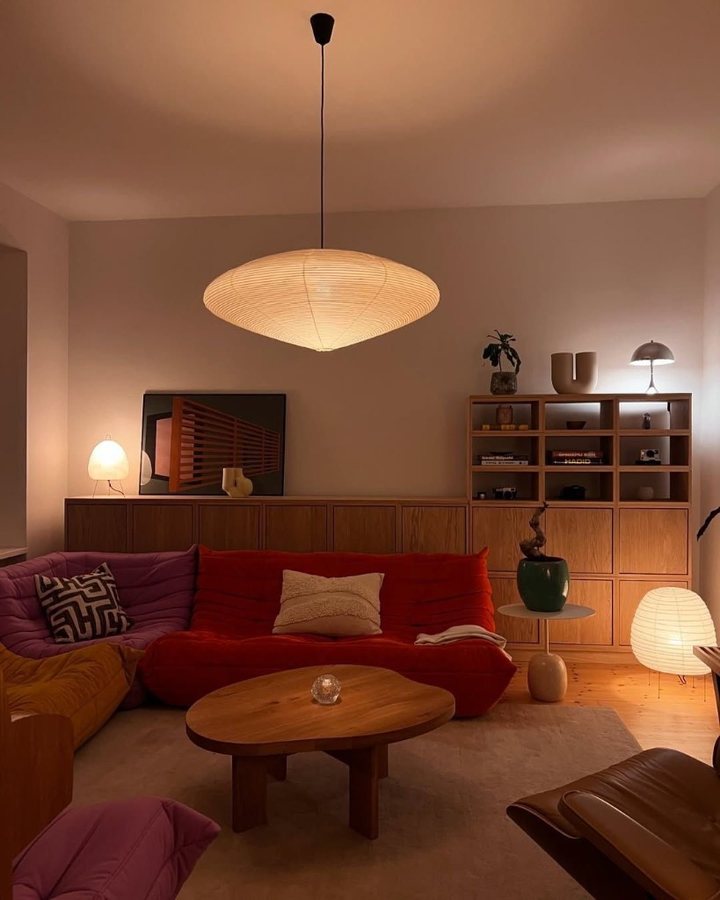
- The red sofa
- The paper lamp
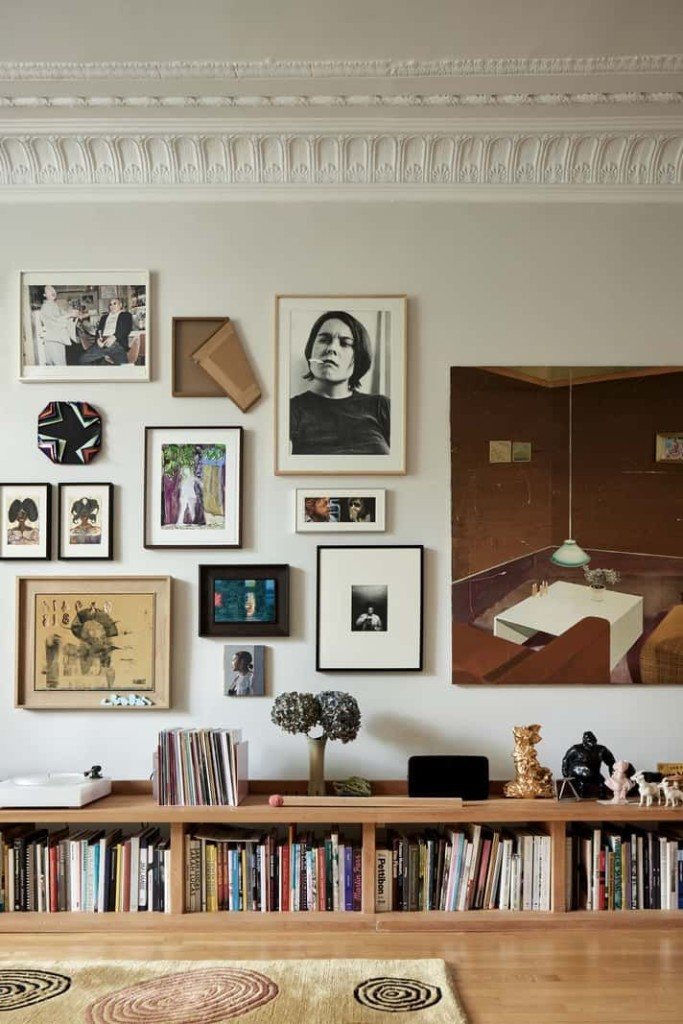
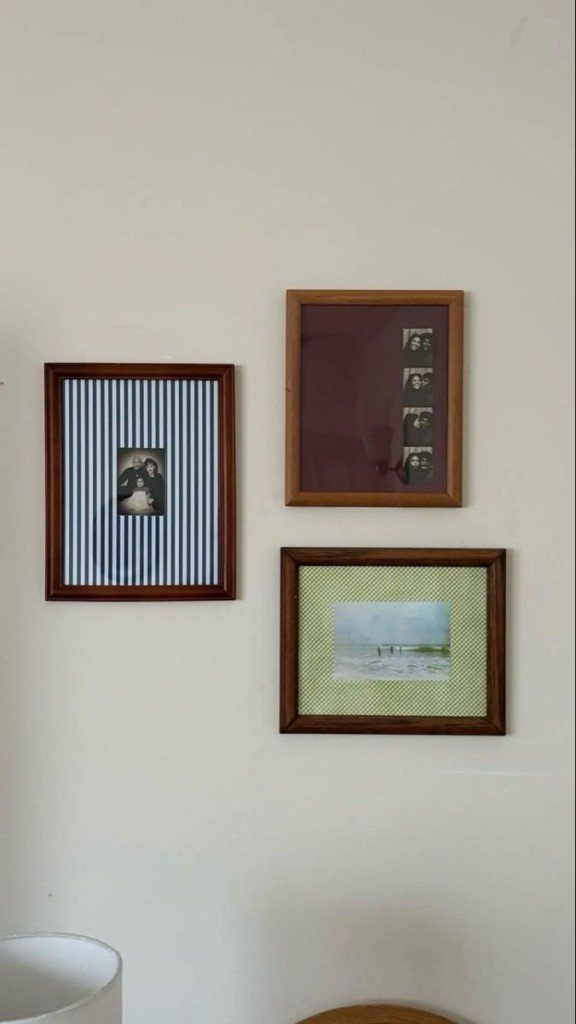
- The gallery wall
A moodboard
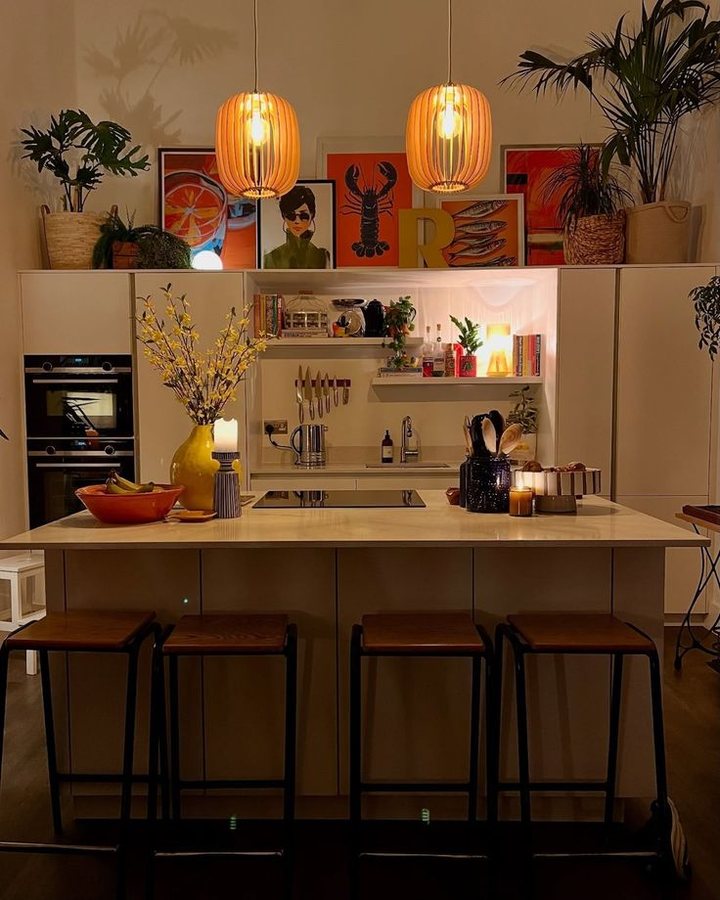
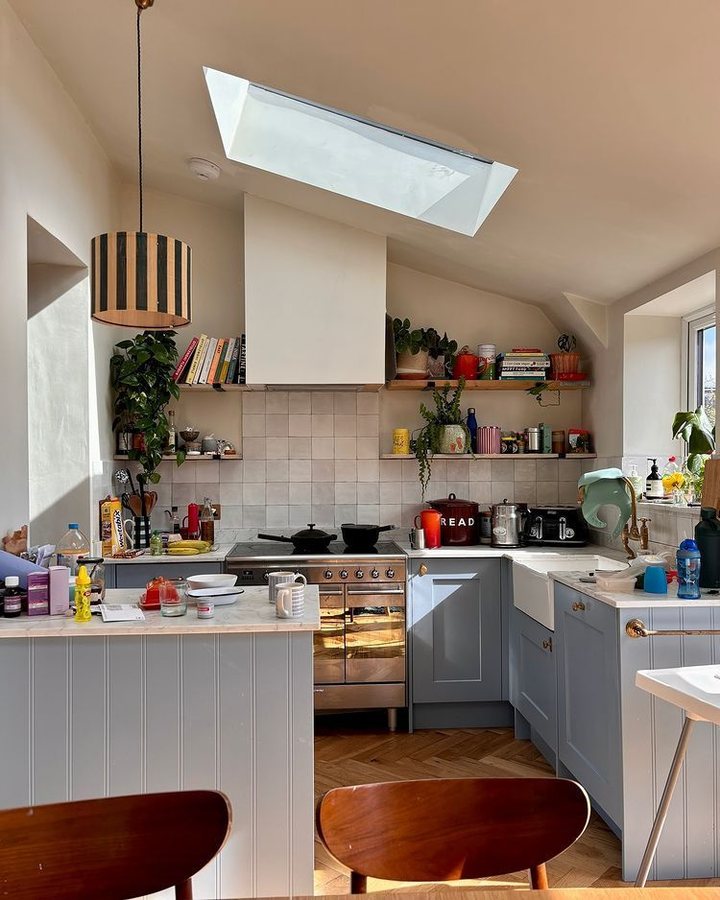
Drop the pictures in, then sort them.
Get your visual references clear with whiteboards. Drag and drop your inspiration, move objects around to how they best make sense to you.
A research board
Follow the research rabbit hole.
Collect all the objects you need around a research topic, then connect or drag them to where they best make sense. Whiteboards let you spread your notes out visually so you can start to make sense of the chaos.
Rhizomatic
Is there a way rhizomatic learning links with desire lines?
Rhizomatic learning - Wikipedia
en.wikipedia.org/wiki/Rhizomatic_learning
Rhizomatic note taking
Rhizomatic
Is there a way rhizomatic learning links with desire lines?
Rhizomatic learning - Wikipedia
The essay
You can start anywhere.
The notes were already linked.
The essay is where you pull everything together.
An essay
Then write the essay.
Use whiteboards to compile your ideas, visualize your notes, and make new connections. You can use your messy thinking to help you make sense of bigger topics.
On the board
Everything you need to just start
Notes from your space
Put people, pages, books, meetings, and tasks on the board with @, or drag them in from the sidebar. Click an object card to open the note.
Photos, PDFs, links, and audio
Drop in a screenshot, a weblink, or a voice note. Flip through PDF pages and play audio right on the board.
Lines and arrows
Connect anything to anything. Add a text label to your arrows, and change their style. Pick straight, cornered, or curved, and choose dotted or dashed.
Frames
Draw a frame around a part of the board to group elements, give it a name, and jump to it from the side panel.
Text and shapes
Quick notes, rectangles, circles, diamonds, stars, and speech bubbles for the thoughts that are not a note yet.
An open file format
Export any board as a JSON Canvas file, an open format other canvas apps can read.
Questions people ask
Your notes, now on a whiteboard
Start one with notes you already have.