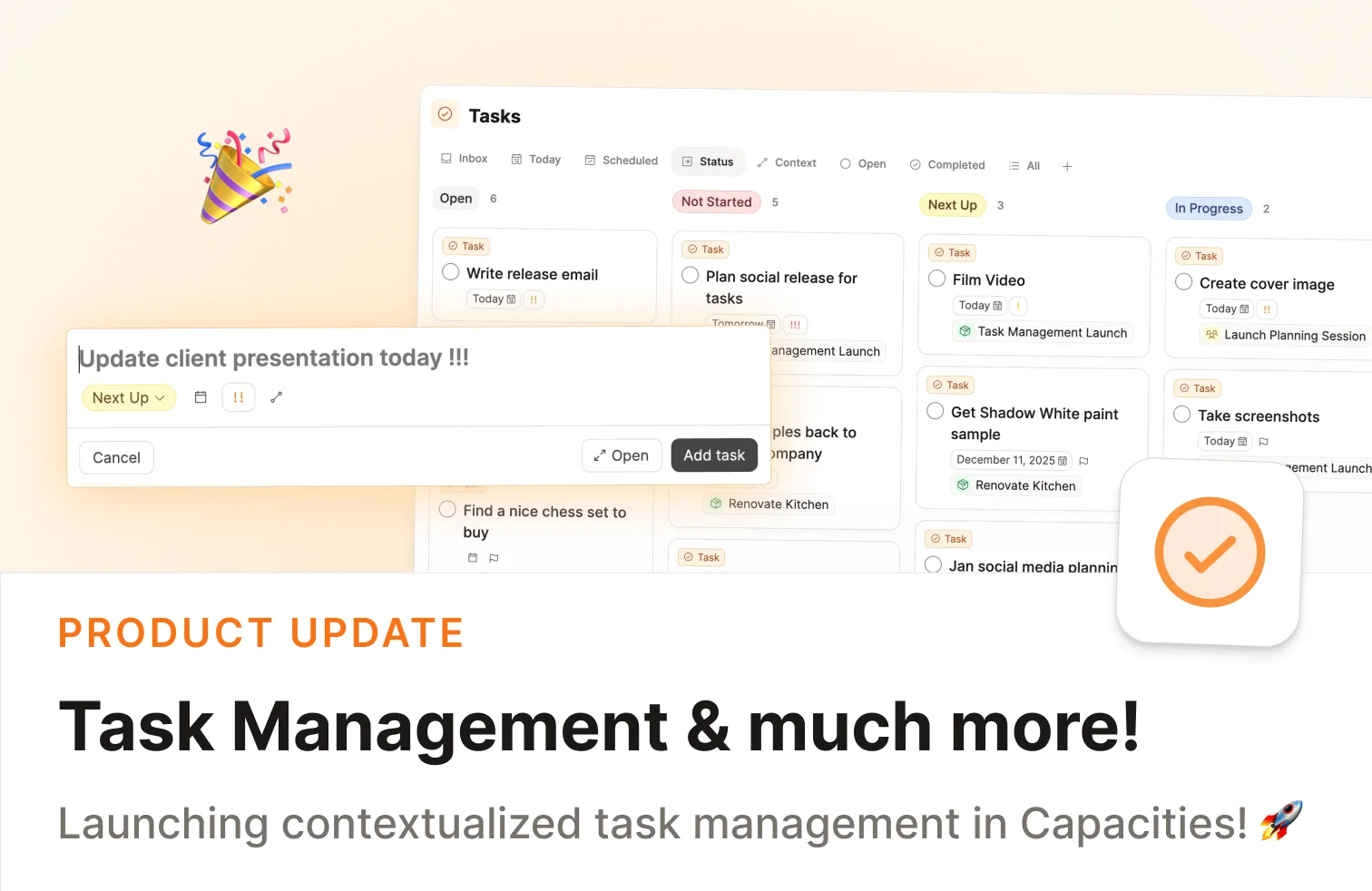
This might come as a surprise but task management is here. ✅ 🚀
We spent countless hours in front of whiteboards, drafts, and ideas over the last months to come up with task management “the Capacities way”. Over the last few weeks, we secretly worked on it behind the scenes and are super excited to launch it for Capacities Pro and Believer today. 🧑💻 📚
Introducing Contextualized Task Management
Everyone needs a system to help them get things done. Having that system embedded directly in the context of your work, without the need for any setup, is a unique approach that other task managers can’t offer. We’re super excited to introduce contextualized task management in Capacities.
The principle is simplicity: create a task from anywhere, find it exactly where you need it, and use built-in views to execute on what matters.
No setup required, it just works. Let us show you how.
📺 Watch this video or read on for more information.
Create tasks from anywhere
Tasks can be added from almost anywhere: inside your notes, through the command palette, the mobile app, the sidebar, or Raycast. A new lightweight modal makes creating them quick.
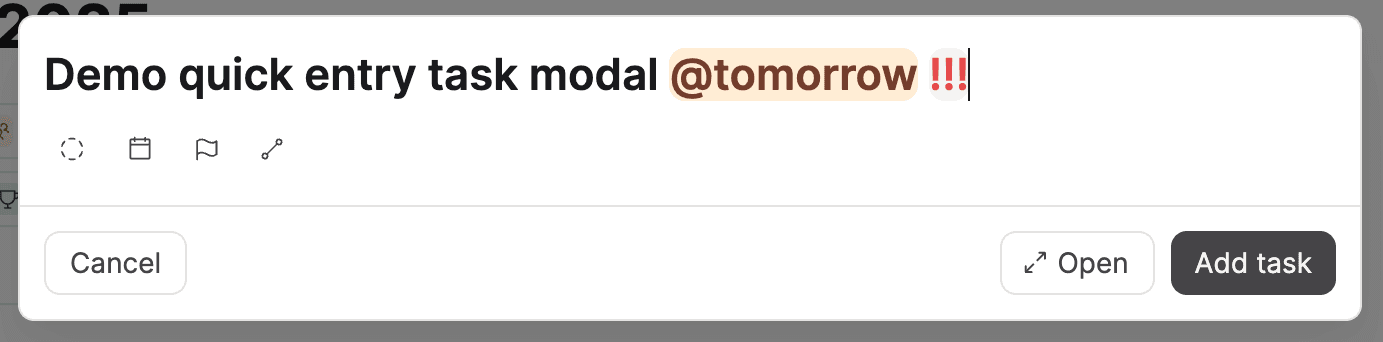
When creating a task, you can set three key details:
- Where it belongs: the note, project, or object it should show up in
- What its priority is
- When you intend to do it: a day, week, or specific time
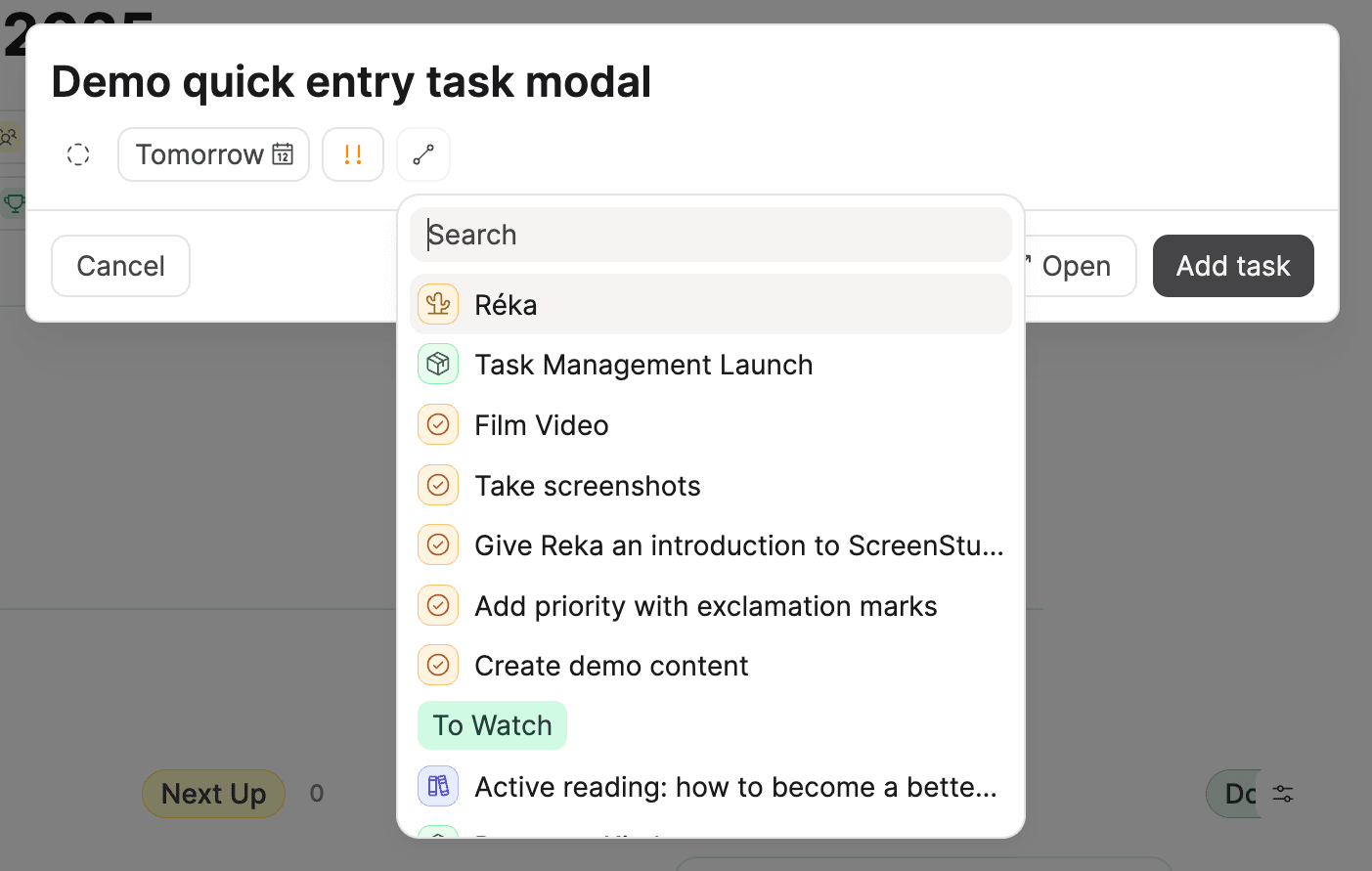
Capacities organizes the task for you from there. You'll find it where you need it.
Group all tasks in your notes
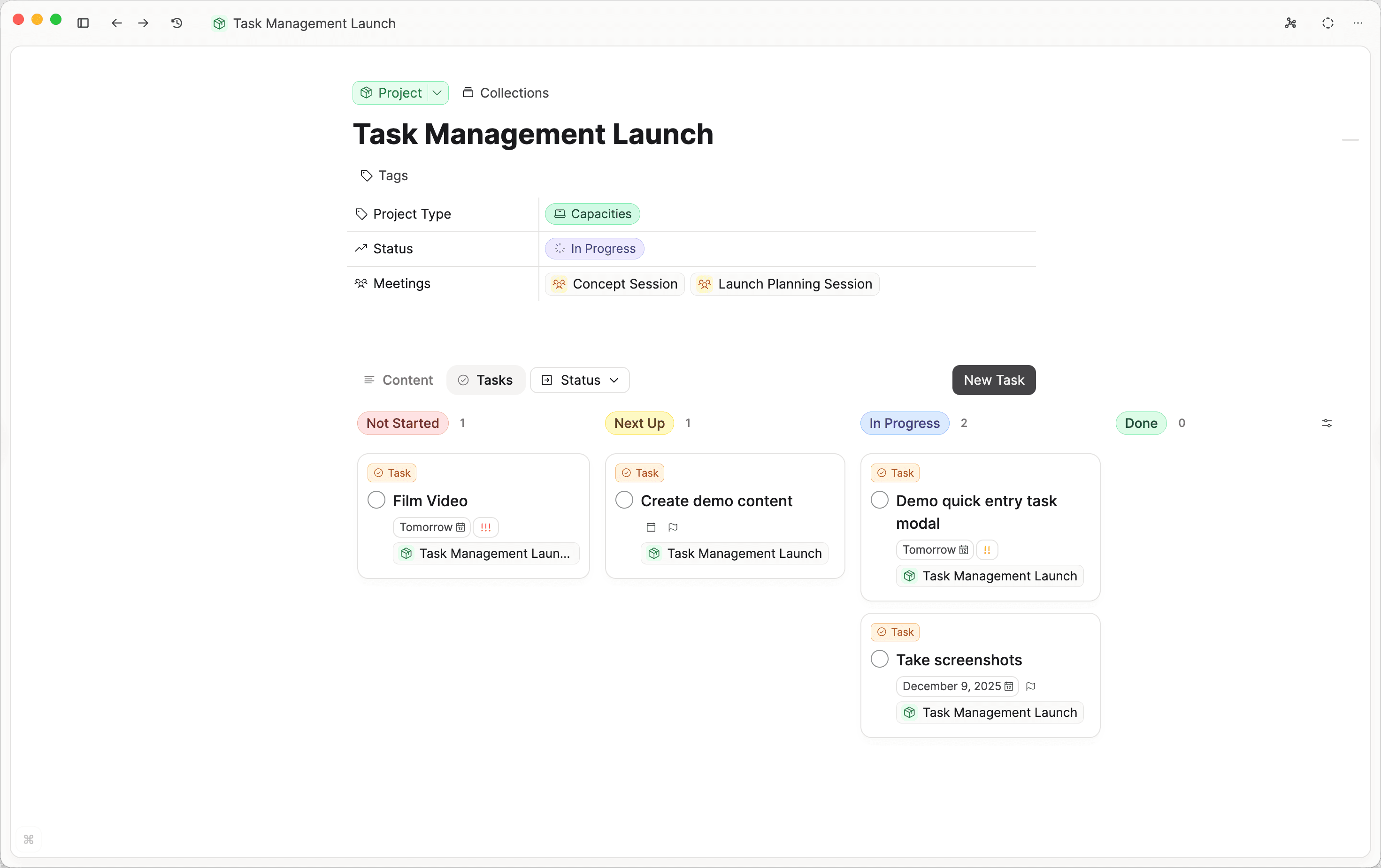
Whenever you create a task in a note, a dedicated task tab collects them for you.
Several views come out of the box, so you can see your tasks in the way that’s most useful. Again, no setup is required.
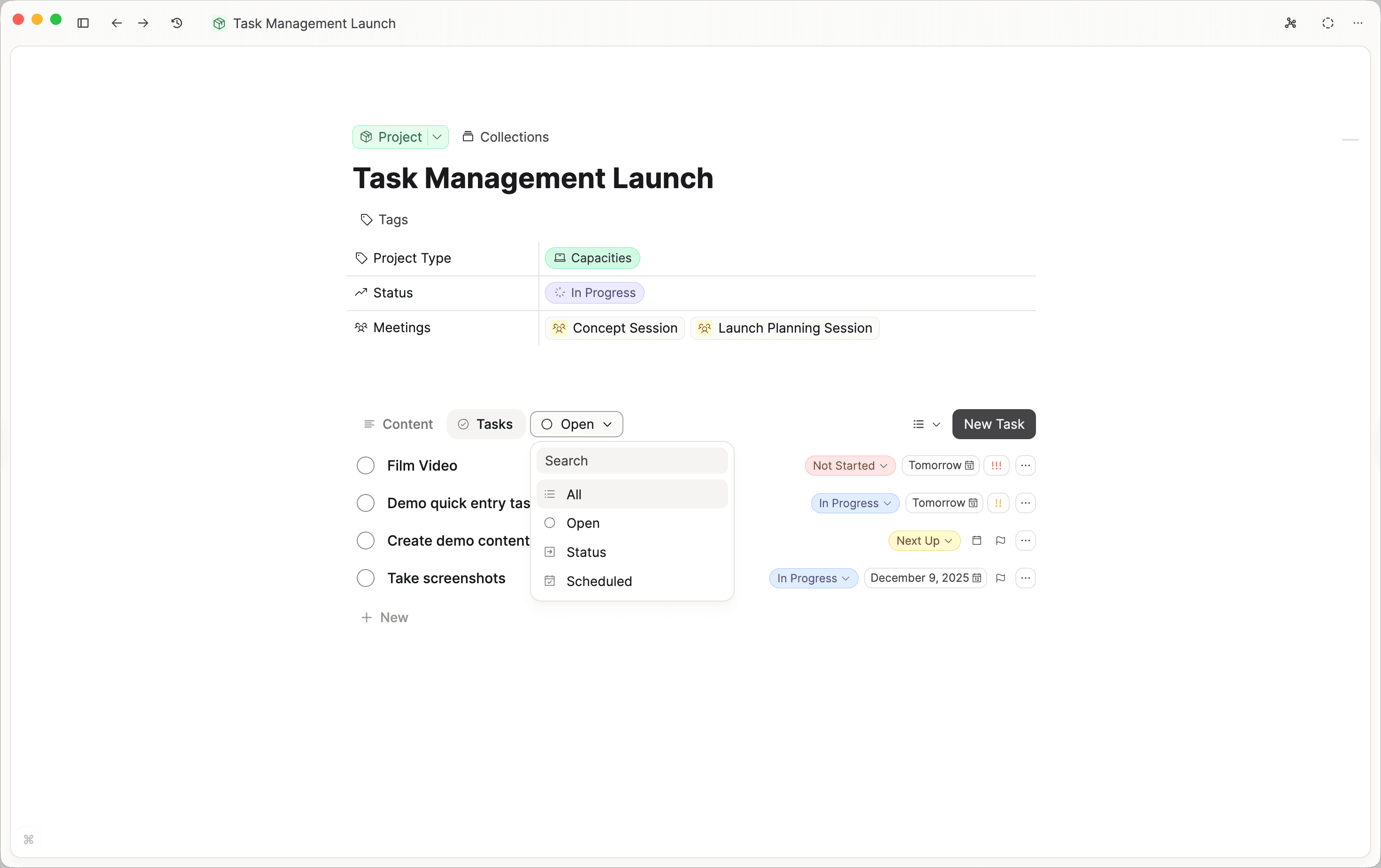
This includes a Kanban view that lets you review all open tasks in the context you’re working in and see the next step in the process.
See your tasks in the calendar
Capacities’ central calendar is a core part of the app, and tasks now appear there too, organized by when they’re scheduled.
You can:
- View all tasks for today
- See upcoming tasks for the week or month
- Quickly reschedule tasks that didn’t get done
This turns the calendar into a simple place for daily planning, without requiring configuration.
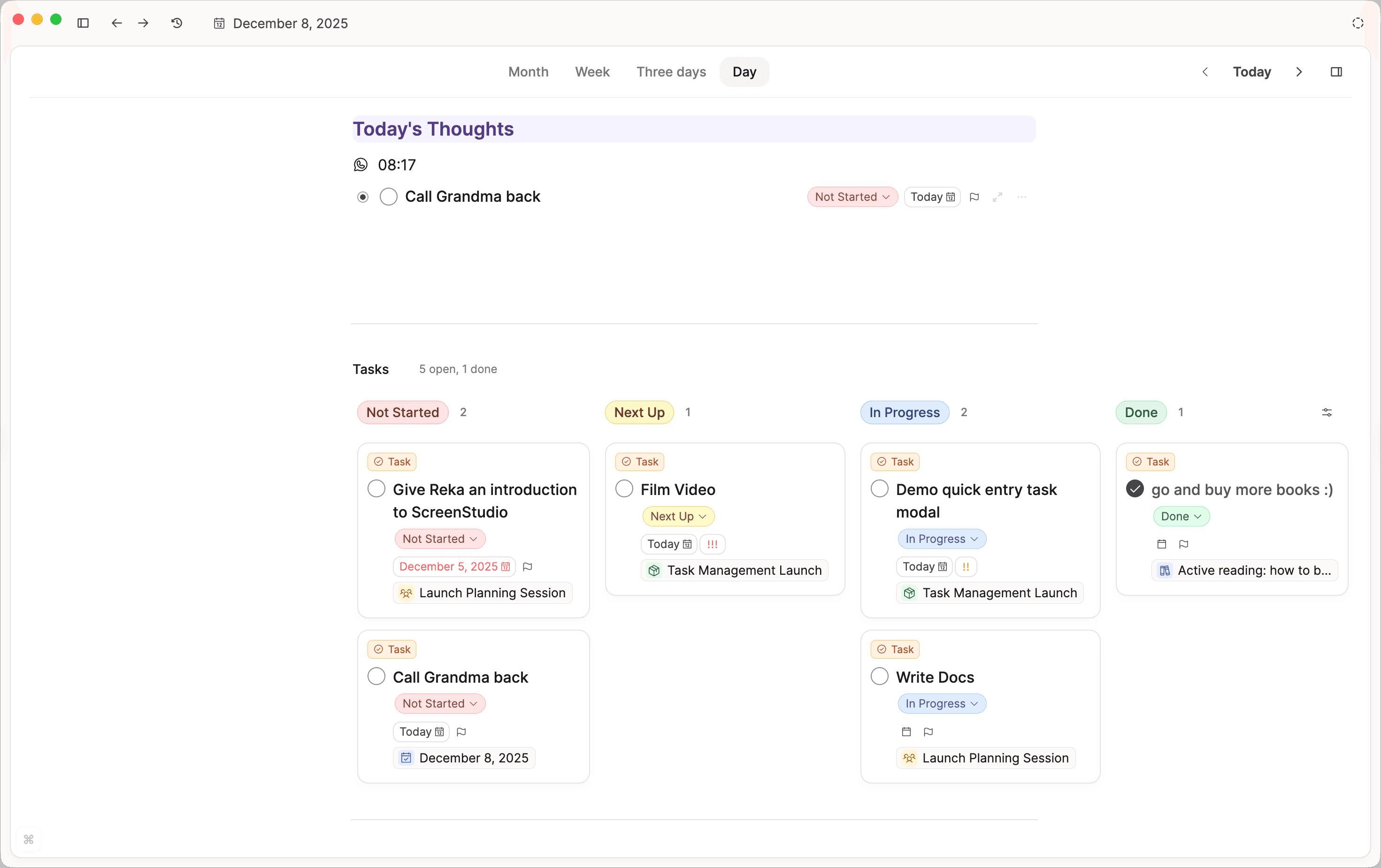
It also means you can see all the tasks done simply by going back in time in the calendar.
Get a full overview when you need it from the task tab
For a broader perspective, the task tab in the left sidebar gives you an overview of all your tasks.
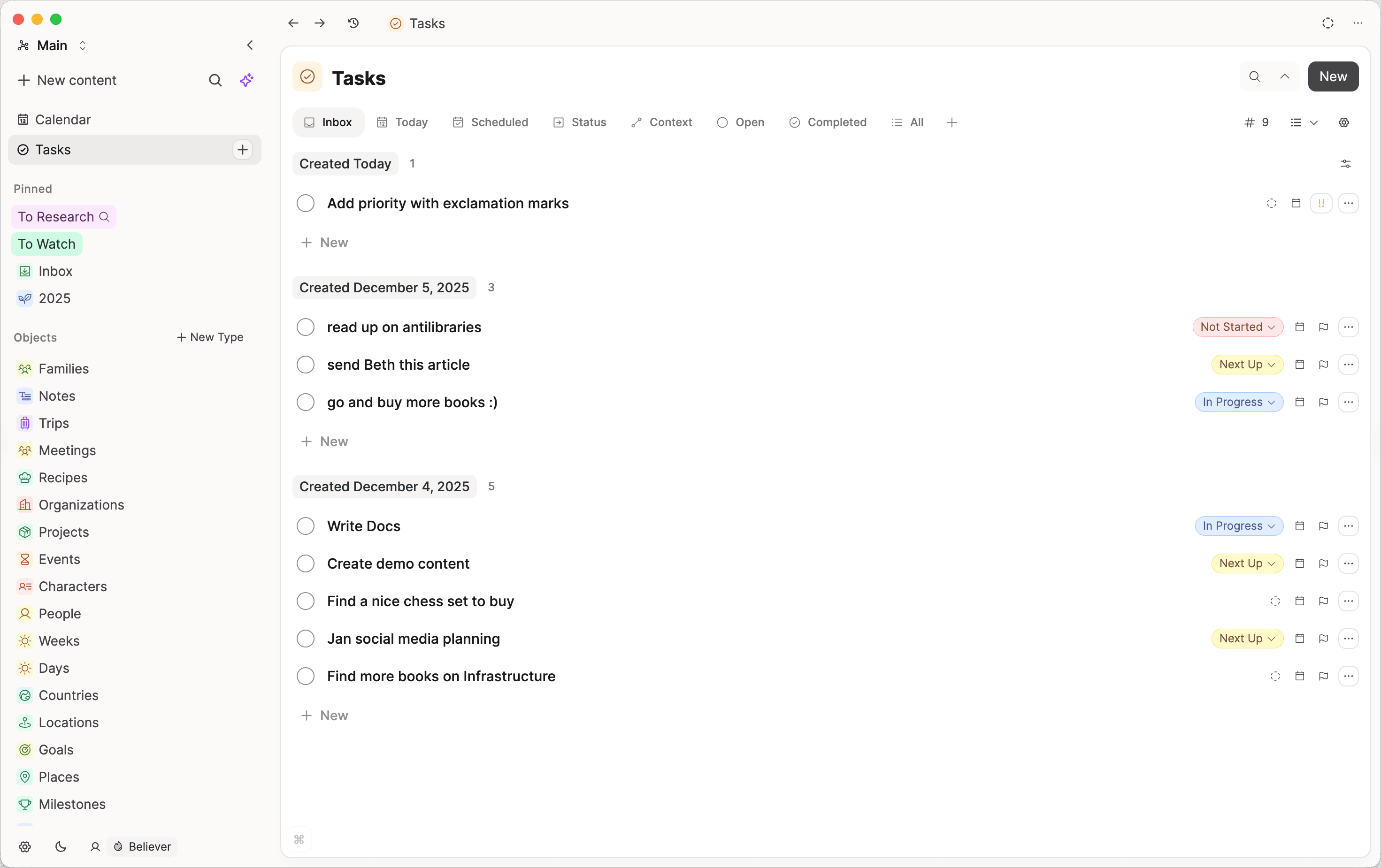
Capacities comes with all the views you need, but of course, you can create your custom task queries on top. Capacities provides:
- Inbox: All tasks without a scheduled date. You can use this to schedule the tasks you created.
- Today: Are all tasks scheduled for today, grouped by status and ordered by priority. You can also see this in the calendar.
- Scheduled: All tasks that have been scheduled, grouped by their date property. Overdue tasks will be at the top for you to reschedule.
- Context: All tasks grouped by the objects they relate to.
- Open: All undone tasks ordered by their priority and status.
- Completed: A log of all tasks you marked as done, ordered by when you completed them.
Philosophy
Tasks in Capacities are simple and actionable. We intentionally designed it so you can do your best work, and Capacities will help you with that. We call it “contextualized task management”. You can read more about why we built task management this way in our blog post.
Roadmap for Task Management
The current version of task management is a “Version 1”. We have ideas and plans to extend task management in Capacities. You can read more about our ideas in our documentation.
In general, if you want to know everything about task management in Capacities, you can read our task management documentation.
On top, we’re launching more exciting updates with this release:
Two themes for Capacities
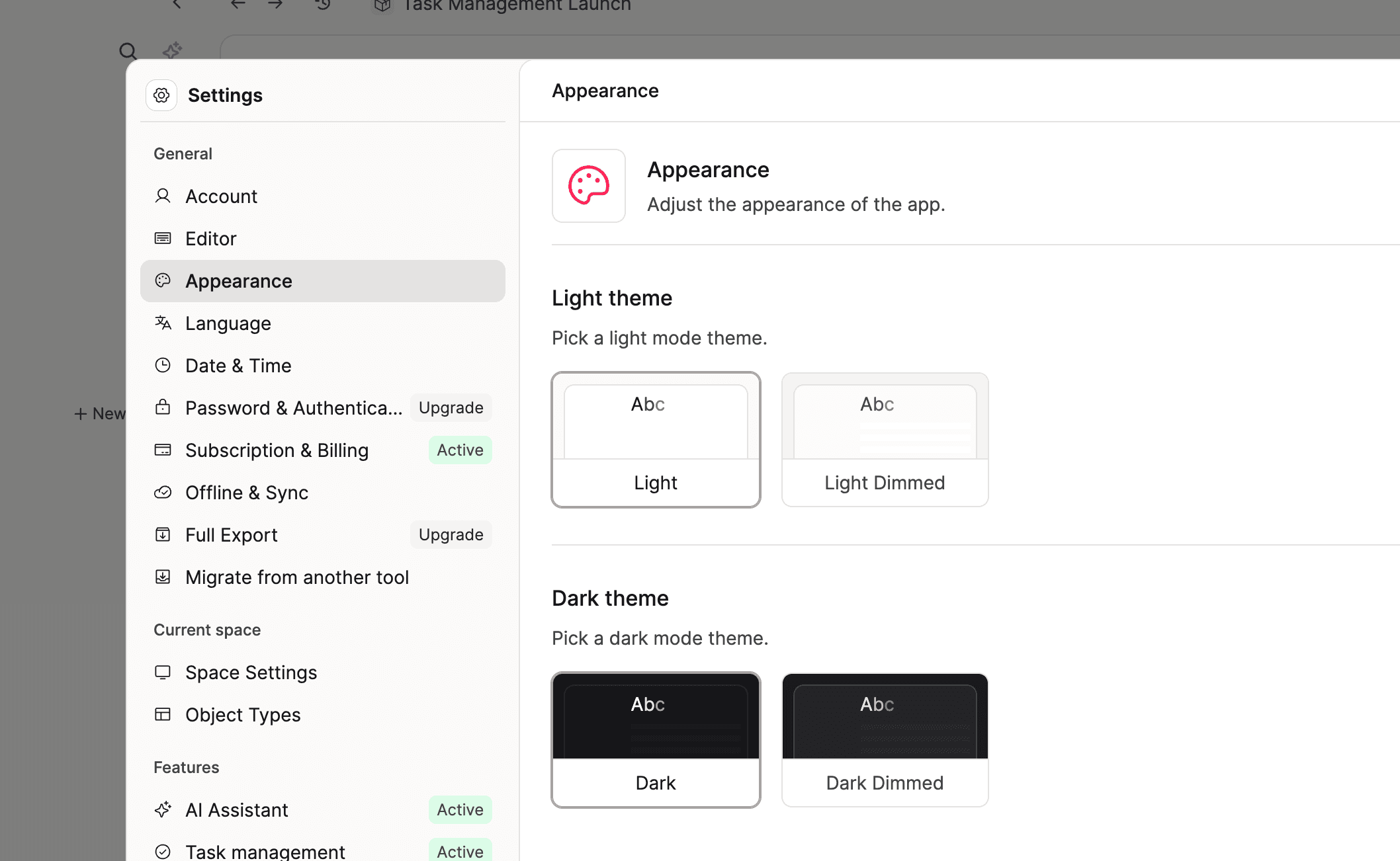
- Introduced two brand-new themes to give you more control over your workspace:
- Light Dimmed – A softer take on the classic light theme with reduced contrast and gentler colors. Perfect for long note-taking sessions when you want a light interface without the harsh brightness.
- Dark – Our new default dark theme! It's noticeably darker and richer than the previous default, offering deeper blacks and a more modern, immersive feel—especially great in low-light environments.
- Renamed the previous default dark theme to Dark Dimmed for clarity. If you loved the old dark look, it’s still here—just select "Dark Dimmed" in your theme settings.
These updates make it easier to find a theme that feels just right for your eyes, mood, and lighting conditions. Happy note-taking! 🌙✨
Graph View Customization
Your graph views can now be customized to your preferences! You can click on the slider icon in the graph view to:
- Hide objects of a certain type: Select object types like images, daily notes, or tags to not see them in the graph view.
- Always show the simplified graph: If you prefer to have a cleaner graph view, nodes will only be shown as colored dots
- Hide objects with many links: Large notes can clutter your graph. This option will hide all nodes with more than 25 links.
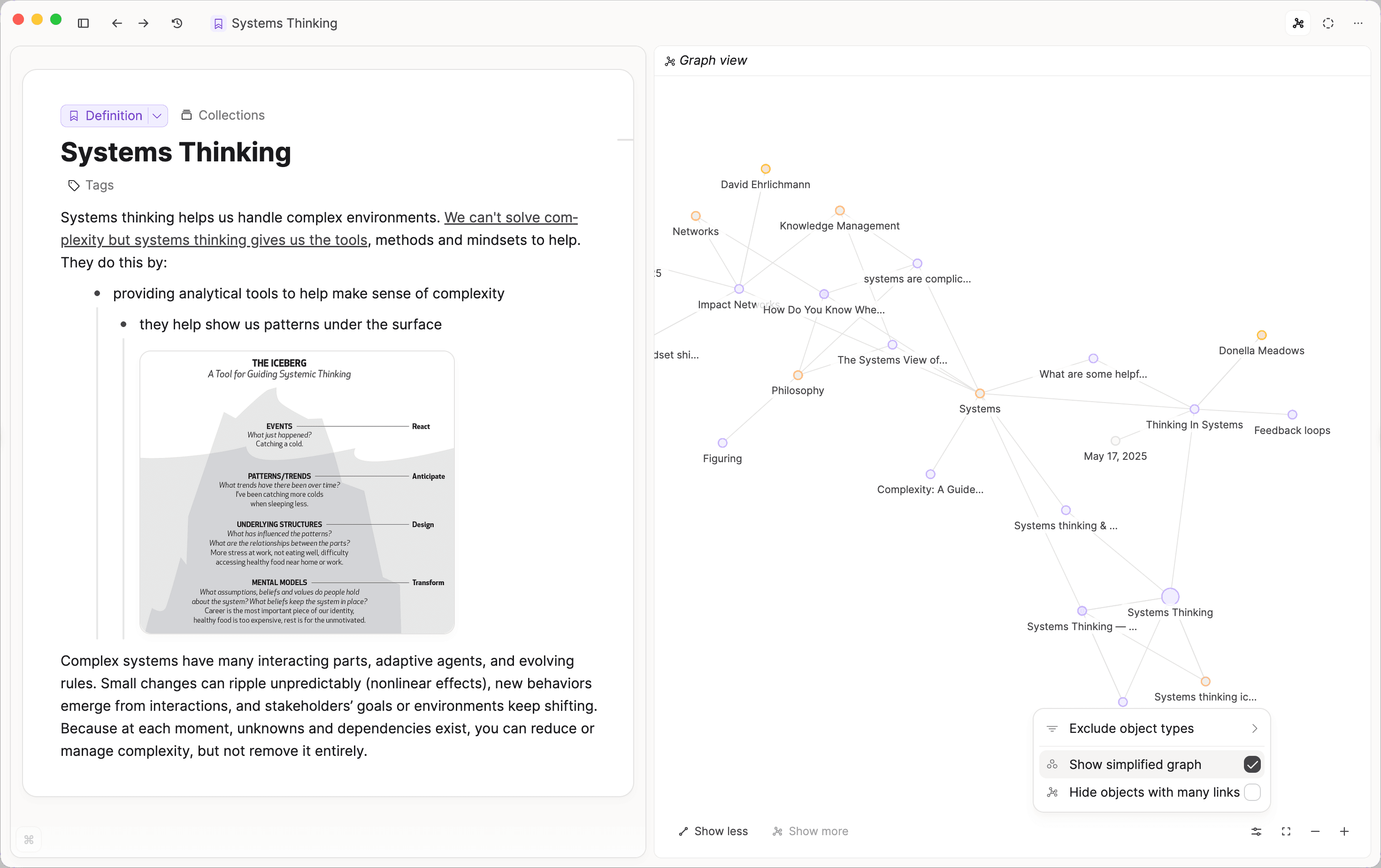
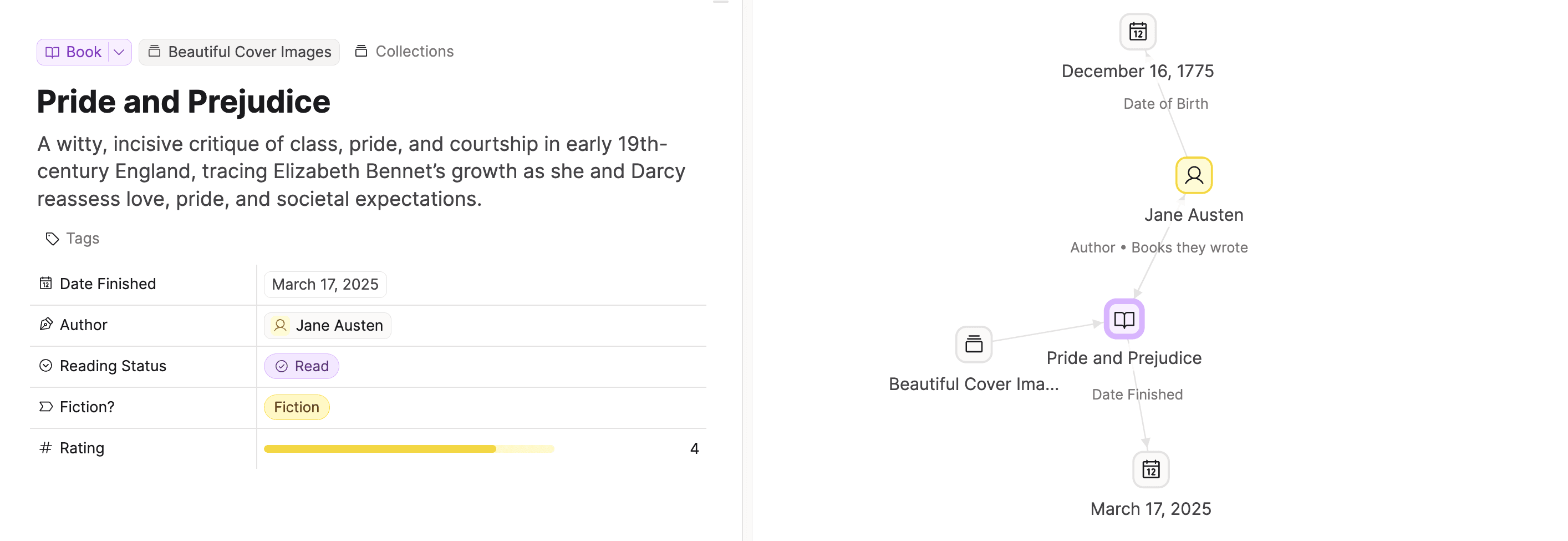
We also added various improvements for the graph view:
- Better edge labels in graph
- Added support to show collections in the graph view so tags inside collections now appear.
- Improved graph view to better handle siblings by splitting links going both ways.
Resizable Media Embeds
Working with media just got even easier. You can now easily resize your embedded media objects in your notes.
You will see options for how to align your media, and you can add a caption:
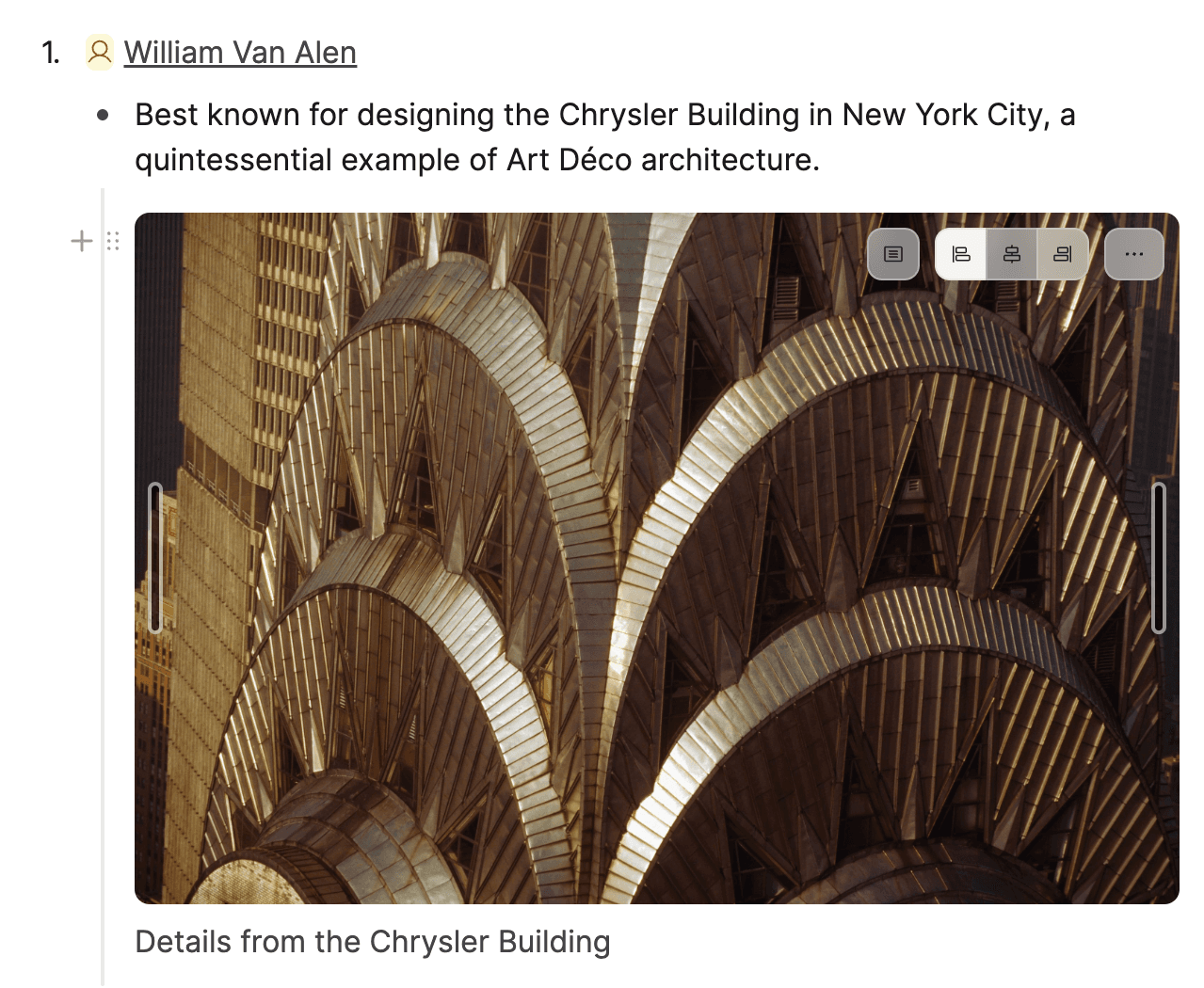
This gives you more control over the layout of your notes.
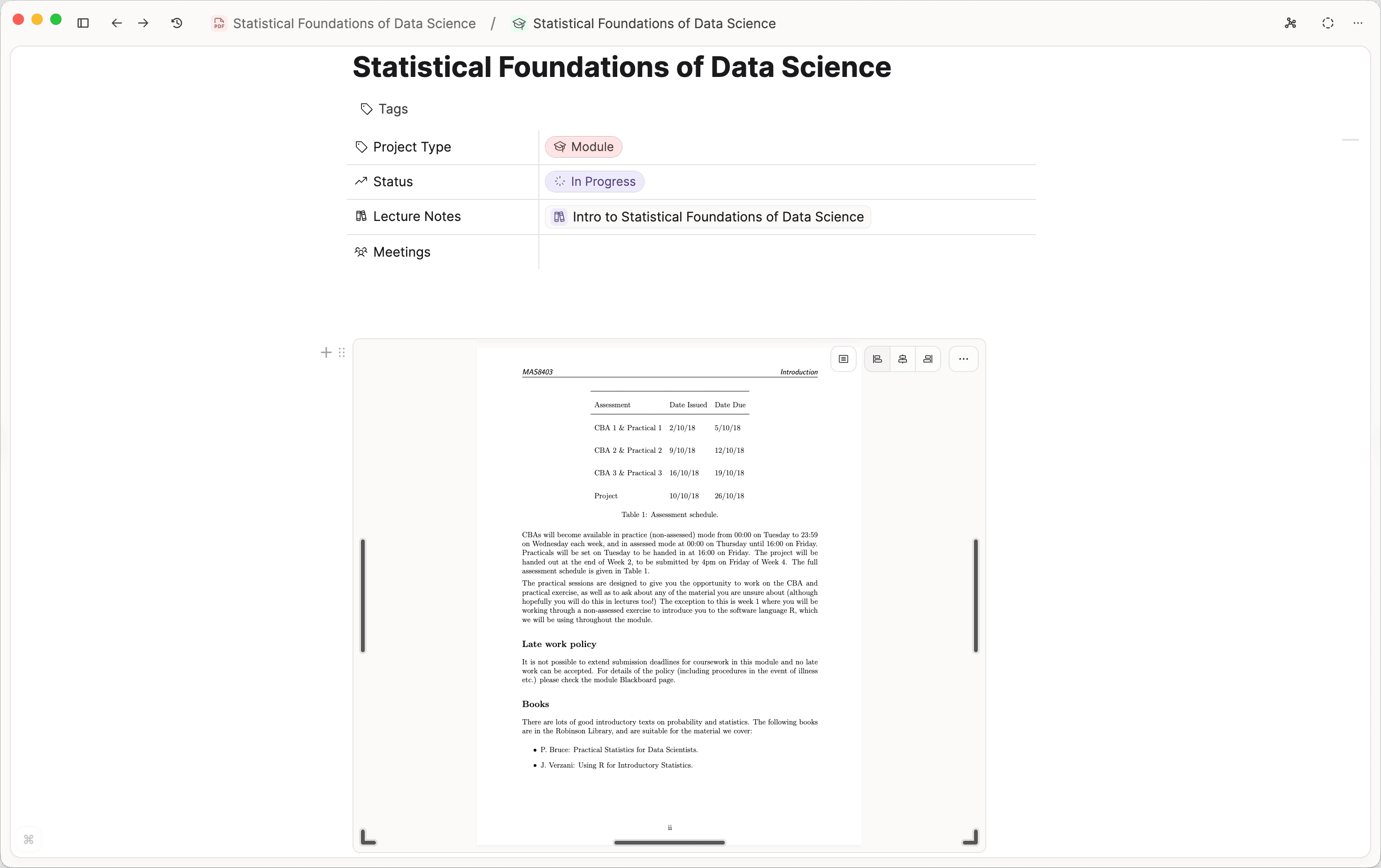
Highlight Improvements
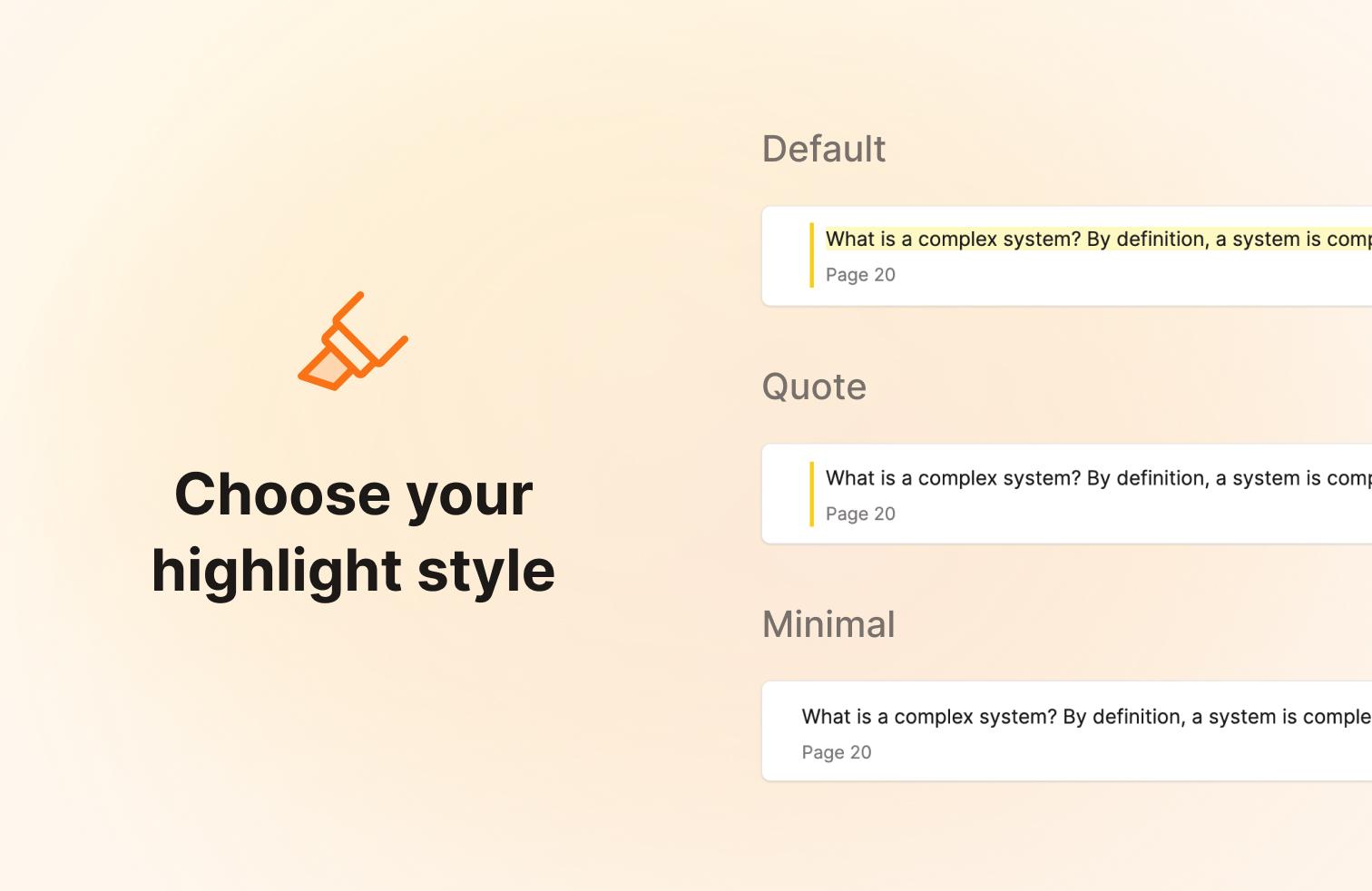
Based on community feedback, you can now customize highlights from Readwise, Kindle, or the web in the Editor settings. You can choose from:
Default: Highlights are displayed with a subtle background color.
Quote: Highlights have a quote bar on the left side.
Minimal: Only show the highlight menu on the right.
You can build your highlight systems around this.
What's next?
2025 has been a huge year for Capacities. We've added major new features and continued polishing many aspects of the app. We're so excited to continue this in 2026.
After the holidays, we will share another “What's next” article, building on our most recent one. There are still some projects on there that we're working on and that will launch next year.
From Us
Here's our latest content:
📺 Overview of AI in Capacities
📺 Web Highlighting in Capacities
📺 What to Do After Highlighting: A Reading Workflow
Improvements and Fixes
✨ Improvements
- New AI Provider: Perplexity is now available as a custom AI provider.
- New Mobile Calendar View: We improved the daily calendar view on mobile to make it more accessible and easier to use on mobile.
- Better edge labels in graph: If there are labels in both directions on an edge, you now only see one.
- More sort options for date properties: You can now sort date properties by "Exists"/"Not exists" to show objects at the top that have dates set or not set.
- Group sort option for "Backlink objects": You can now group all objects by the objects they are backlinked to by the date these objects were created.
- Added keyboard shortcut Cmd/Ctrl + T to open a new tab in the desktop app for quicker navigation. Ticket
- Added support to show collections in the graph view so tags inside collections now appear. Ticket
- Improved graph view to better handle siblings by splitting links going both ways. Ticket
- Updated the graph views to hide large nodes and show minimal nodes for a cleaner display. Ticket
🐛 Fixes
- Fixed an issue where the desktop app showed "View is not ready yet" even though content was synced and available. Ticket
- Resolved problem where deleting an object caused the opened editor to close unexpectedly. Ticket
- Corrected shortcut keys on macOS so commonly used shortcuts like Command+U and Control+Command+H work properly. Ticket
- Fixed an issue preventing users from deleting default object types.