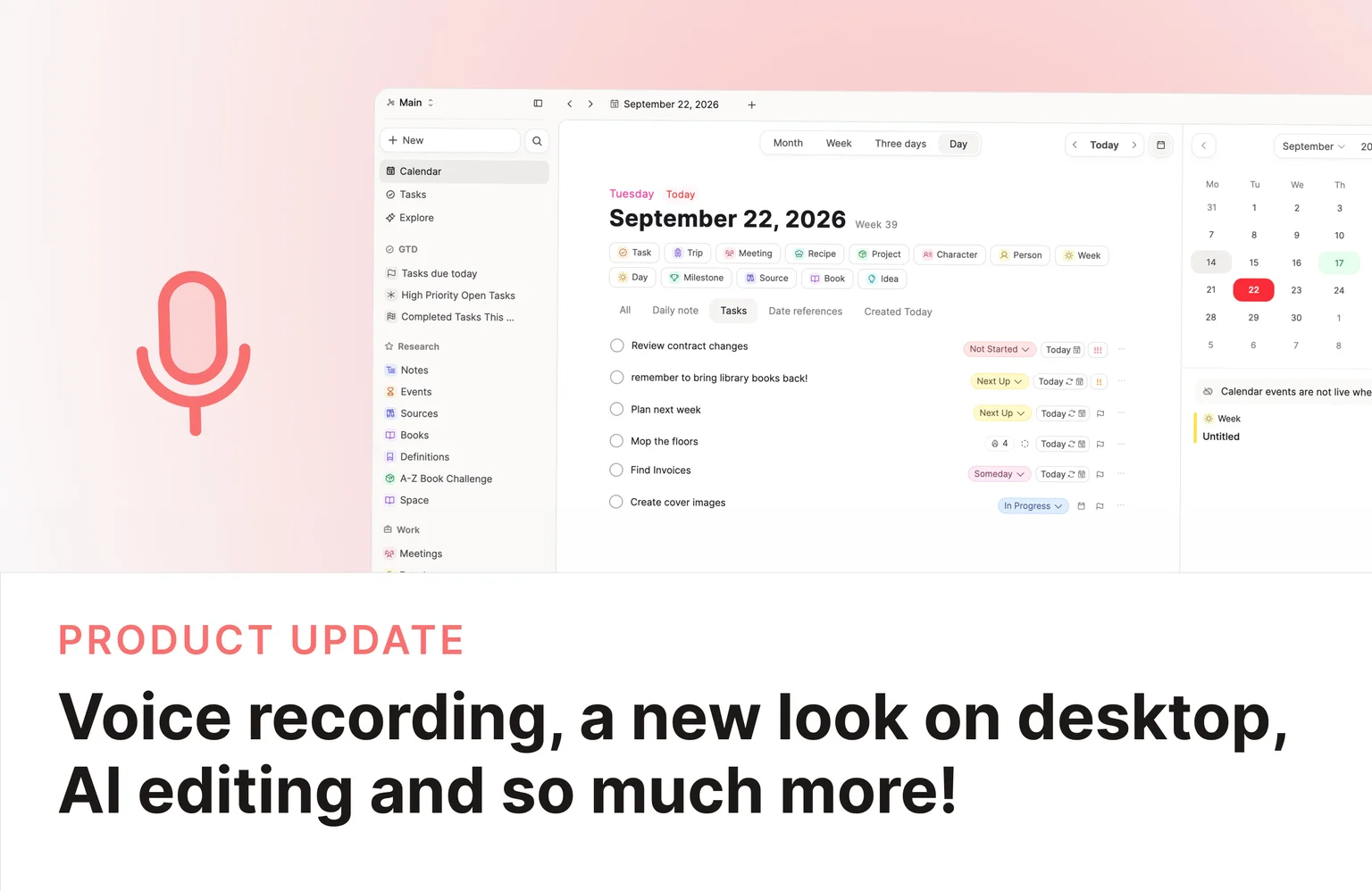
See these changes in our new release video!
Audio recording and transcription
Capacities BelieverVoice capture is a powerful tool and now it's built into Capacities. Start an Audio recording on desktop via New > Audio or click the microphone icon in the daily note, or use a widget or the mobile app. This is great for meetings, voice notes or ideation. On the desktop app you can capture system audio, and on mobile recording keeps running in the background, so you can keep working while it records. Each recording is saved directly to Capacities as an audio object so it's alongside the rest of your work.
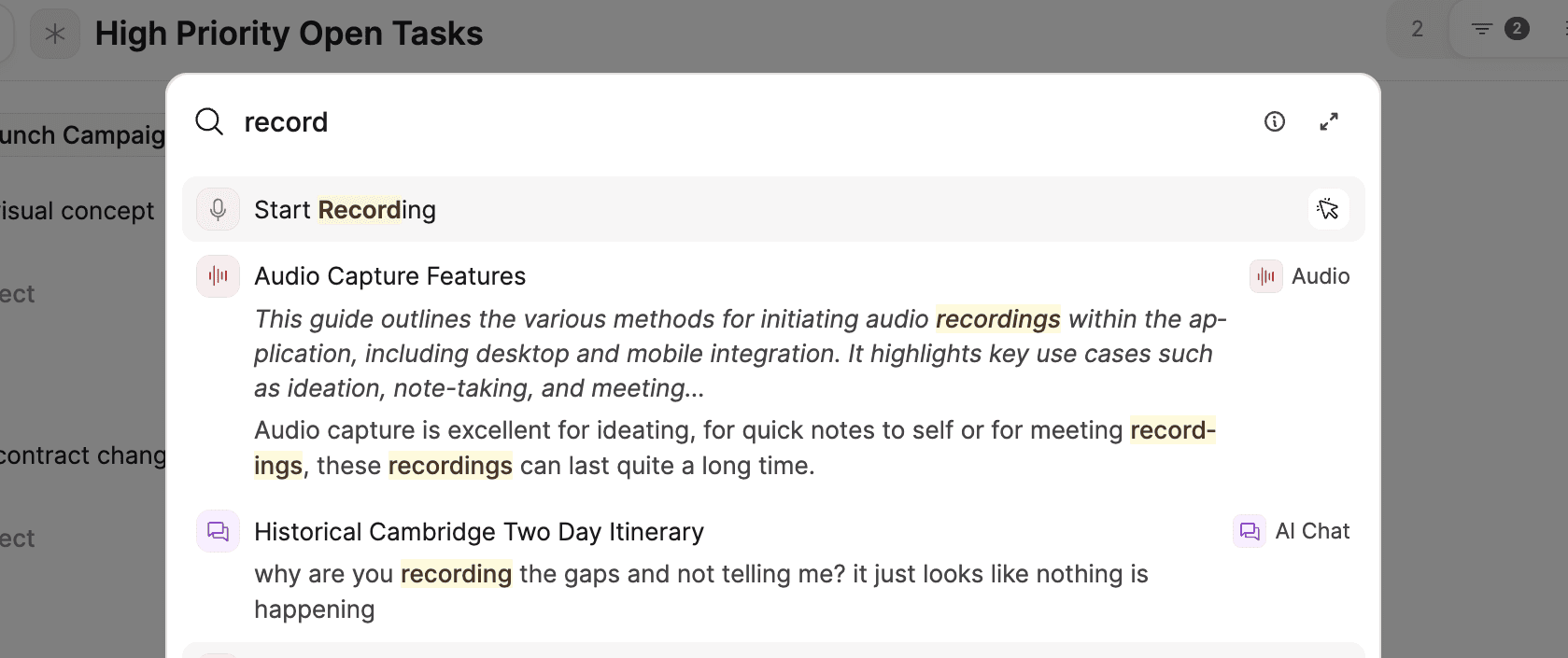
When you have your recording, you can click Analyze to transcribe it. You get the spoken words as text, plus a summary. The transcript and summary are searchable.
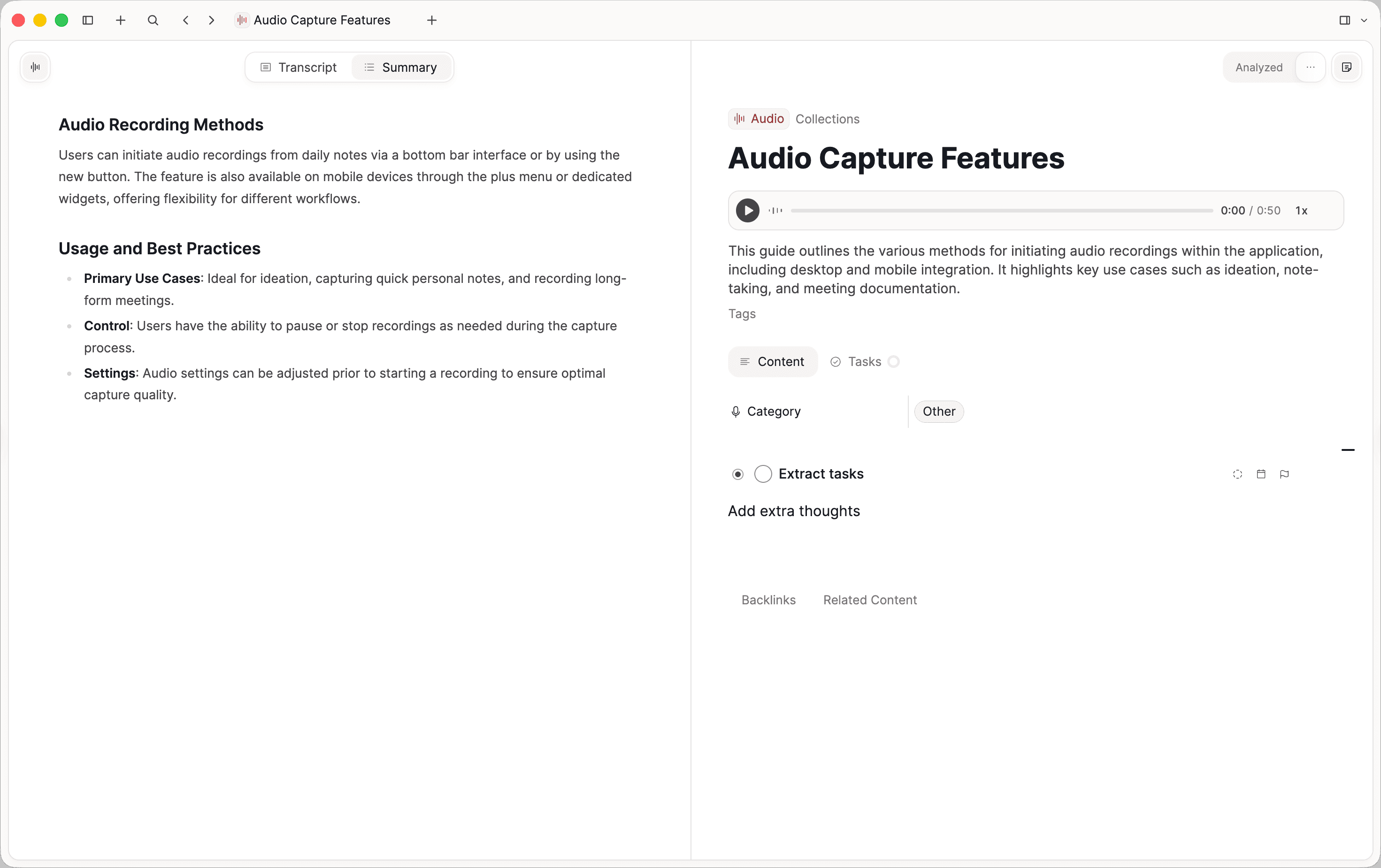
This feature is available in early access for Capacities Believer. Transcription and summaries need AI turned on in Settings. If you would like to see how much of your AI budget the analysis uses, you can do this in Settings > AI Assistant. After the Early Access period, it will be a part of the Pro plan.
A calmer desktop UI
We reworked most of the desktop app experience. It should look familiar, but the layout and orientation within the app are now unified: cleaner, calmer, and more consistent.
- Pages, type views, the calendar, media, settings, and AI chat now share a unified layout. Actions sit in a row at the top and the bottom of the window. When a pane is narrow, extra controls fold instead of stacking.
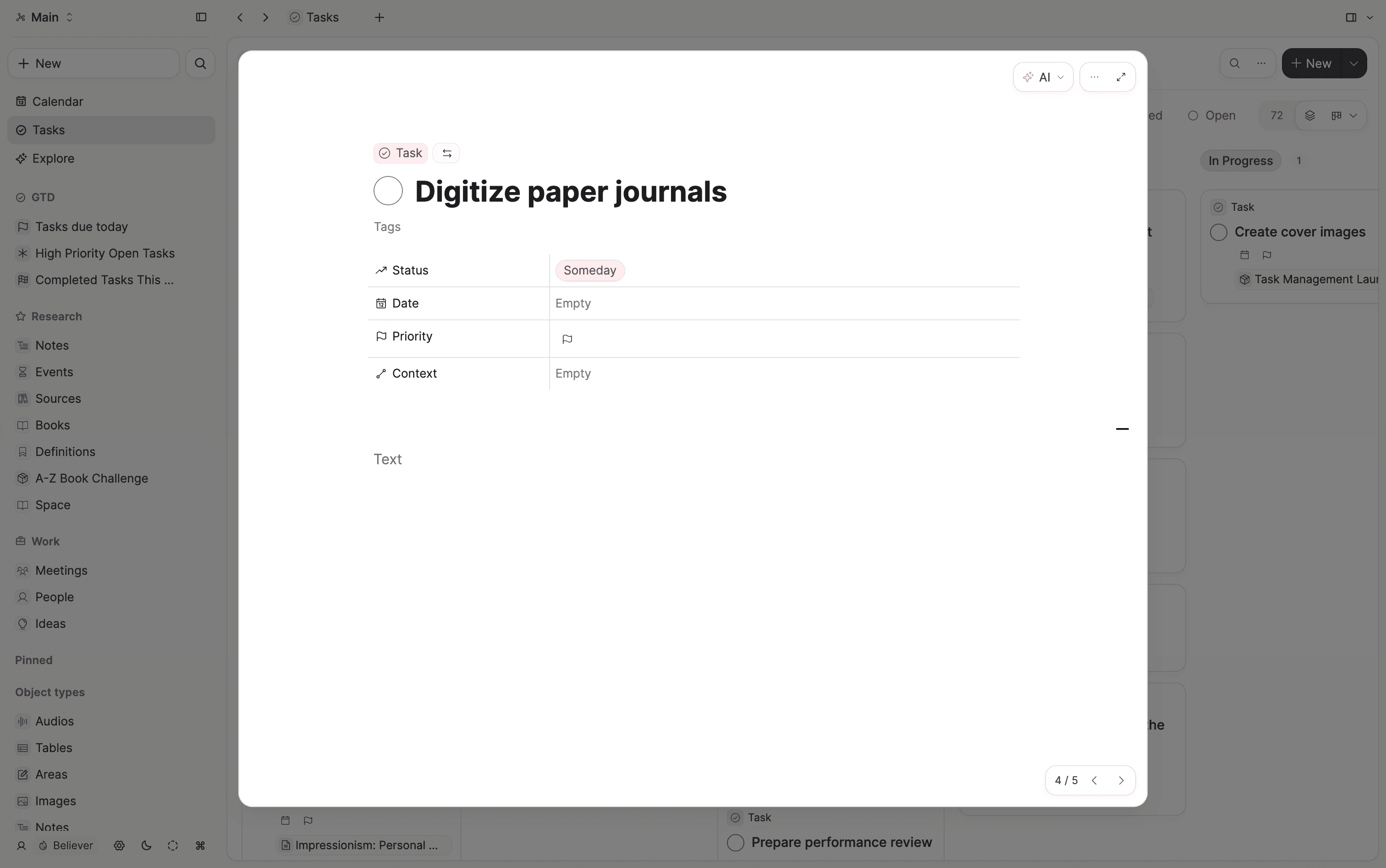
- Font sizes are more consistent, so the app is easier to read for long sessions.
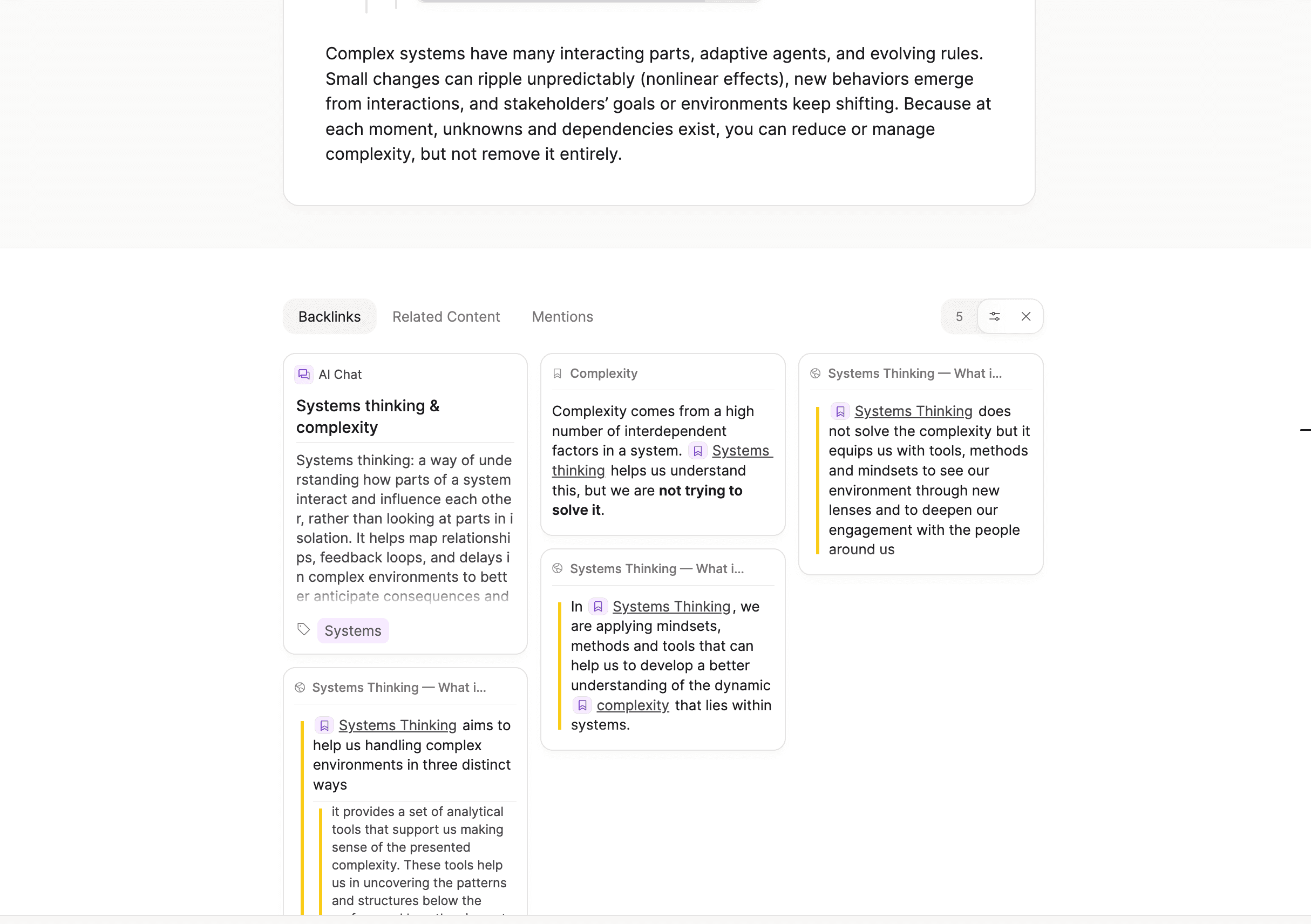
- On a page, backlinks, related content, and mentions sit in tabs at the bottom now. Click the open tab again to hide them.
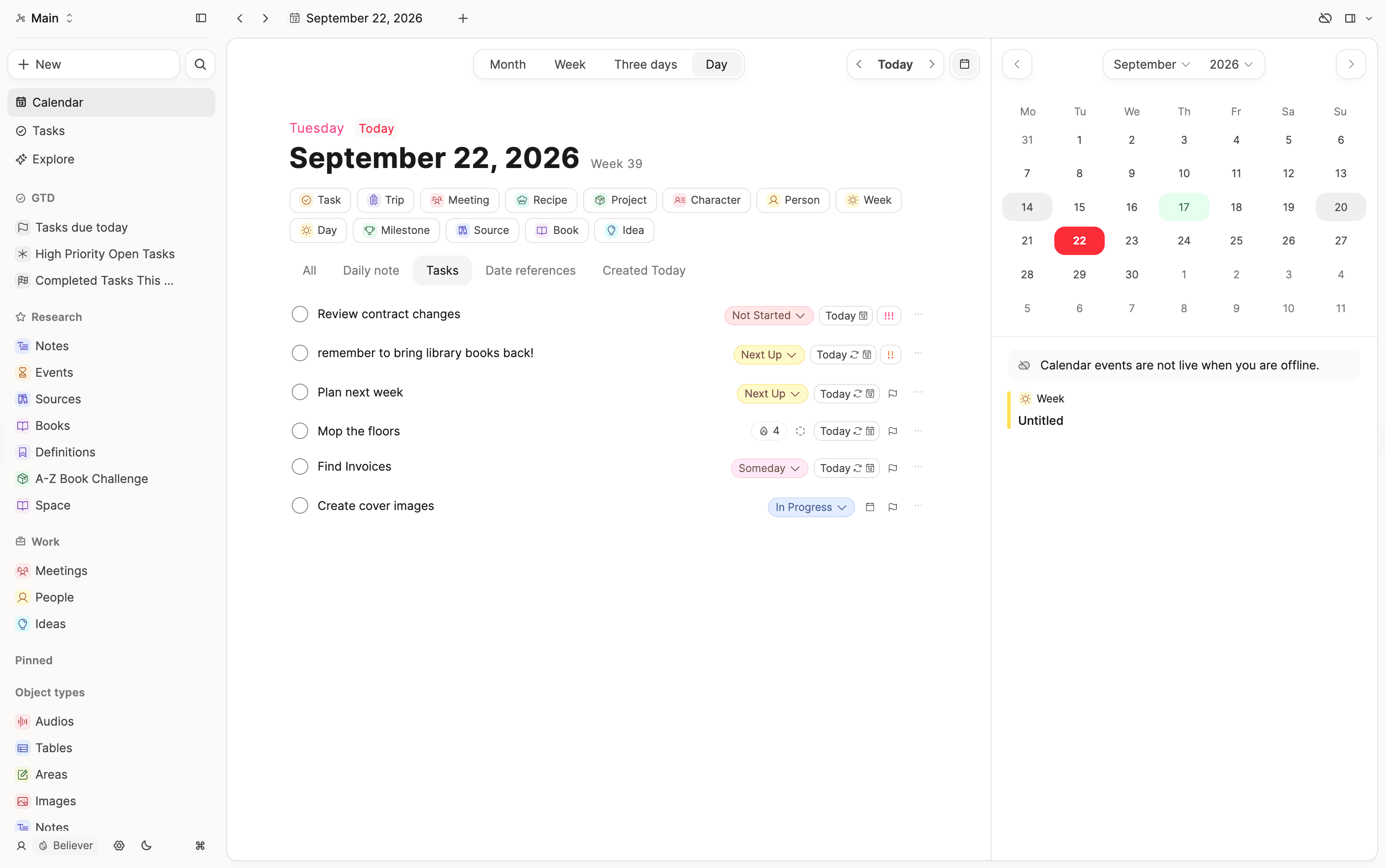
- The calendar Daily view has tabs for each section, plus an All tab that shows them together.
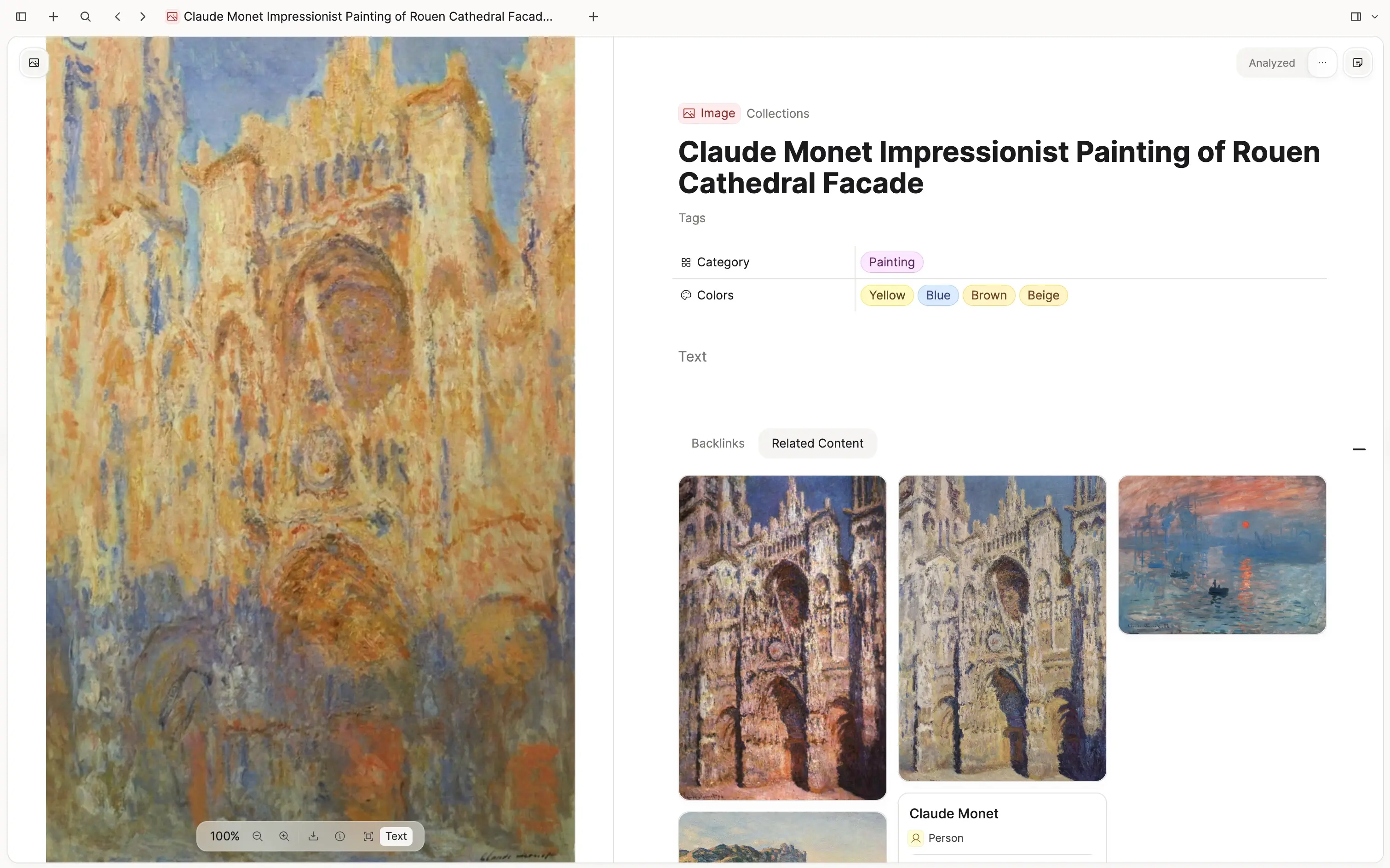
- You can right-click an object for the same actions as the three-dot menu.
- Media split panes are simplified and cleaner.
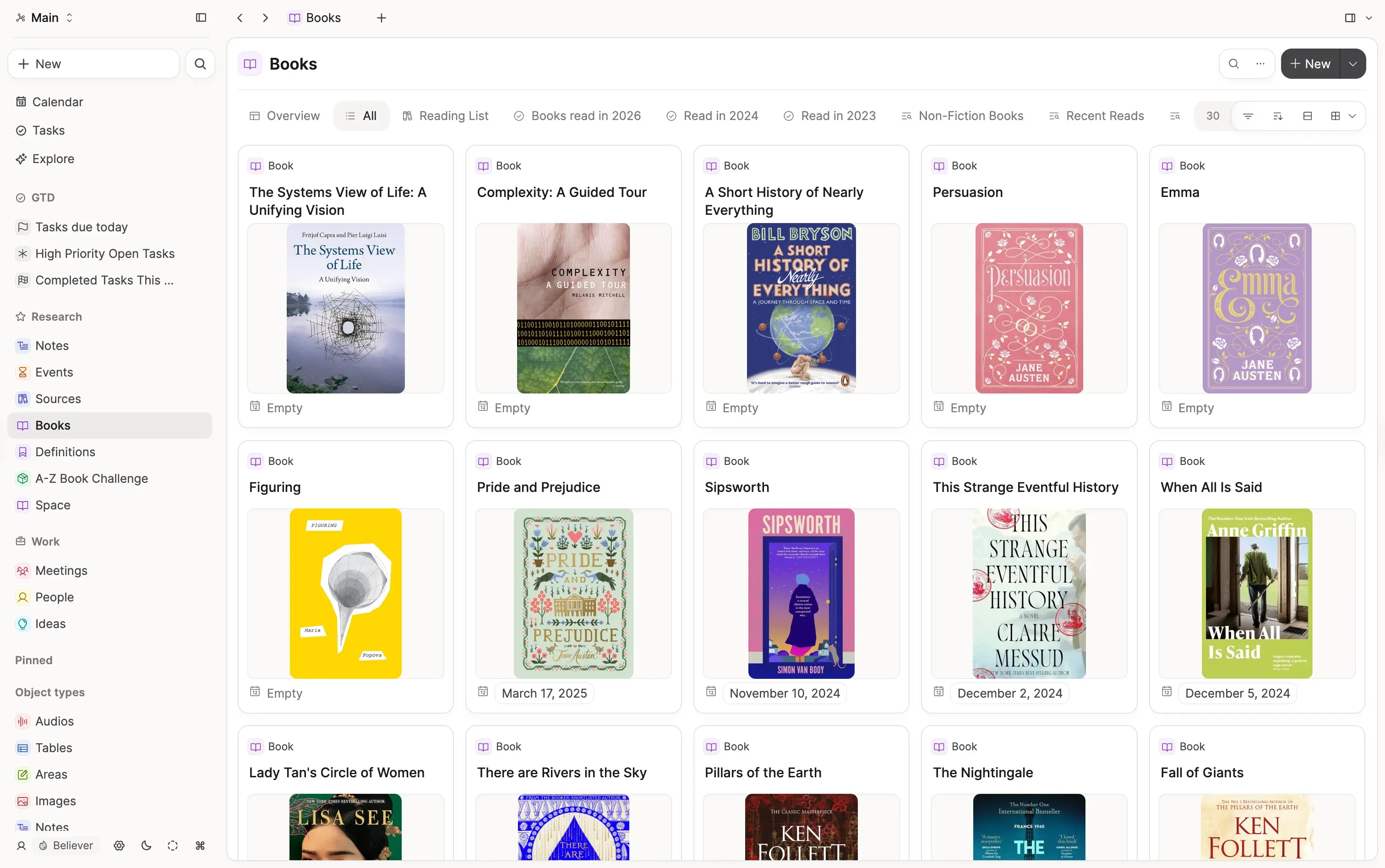
- All data views now have a consistent pill strip of data view options, always at the top right above the view. It has improved responsive design on small screens and stays consistent across different data views and places.
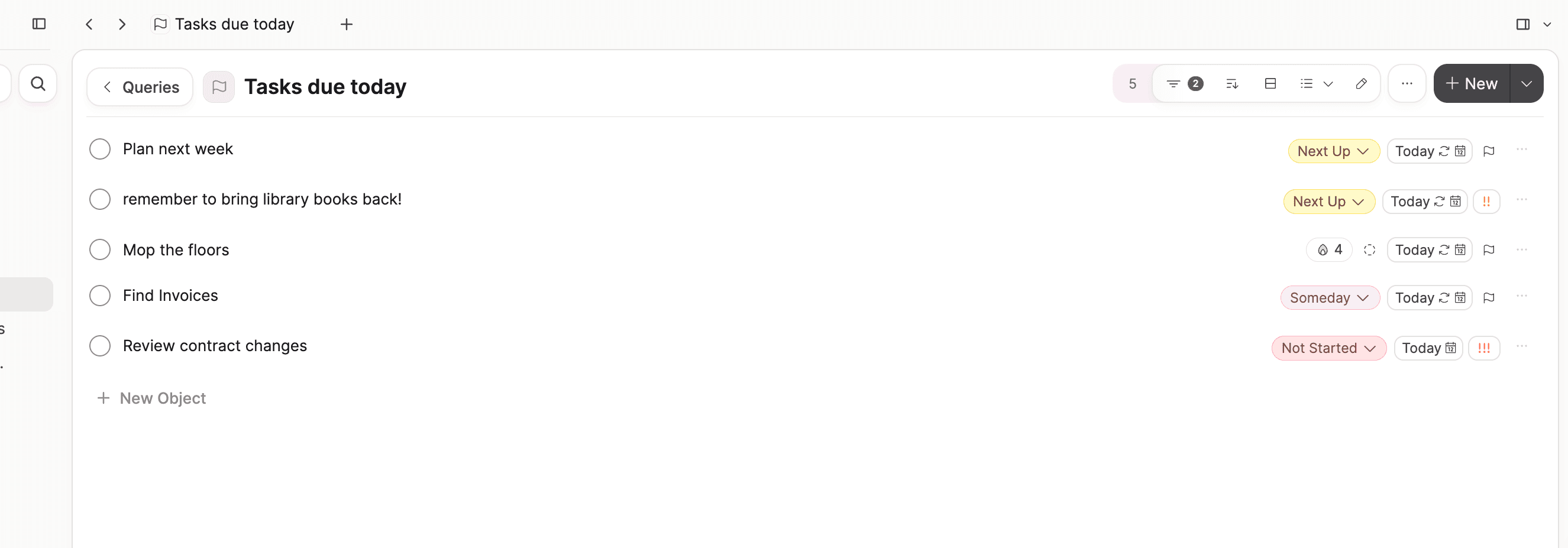
- Focus mode got an update as well. It is in the space overview footer and easier to use.
There are many more details that have been made nicer and more consistent.
Professional PDF export
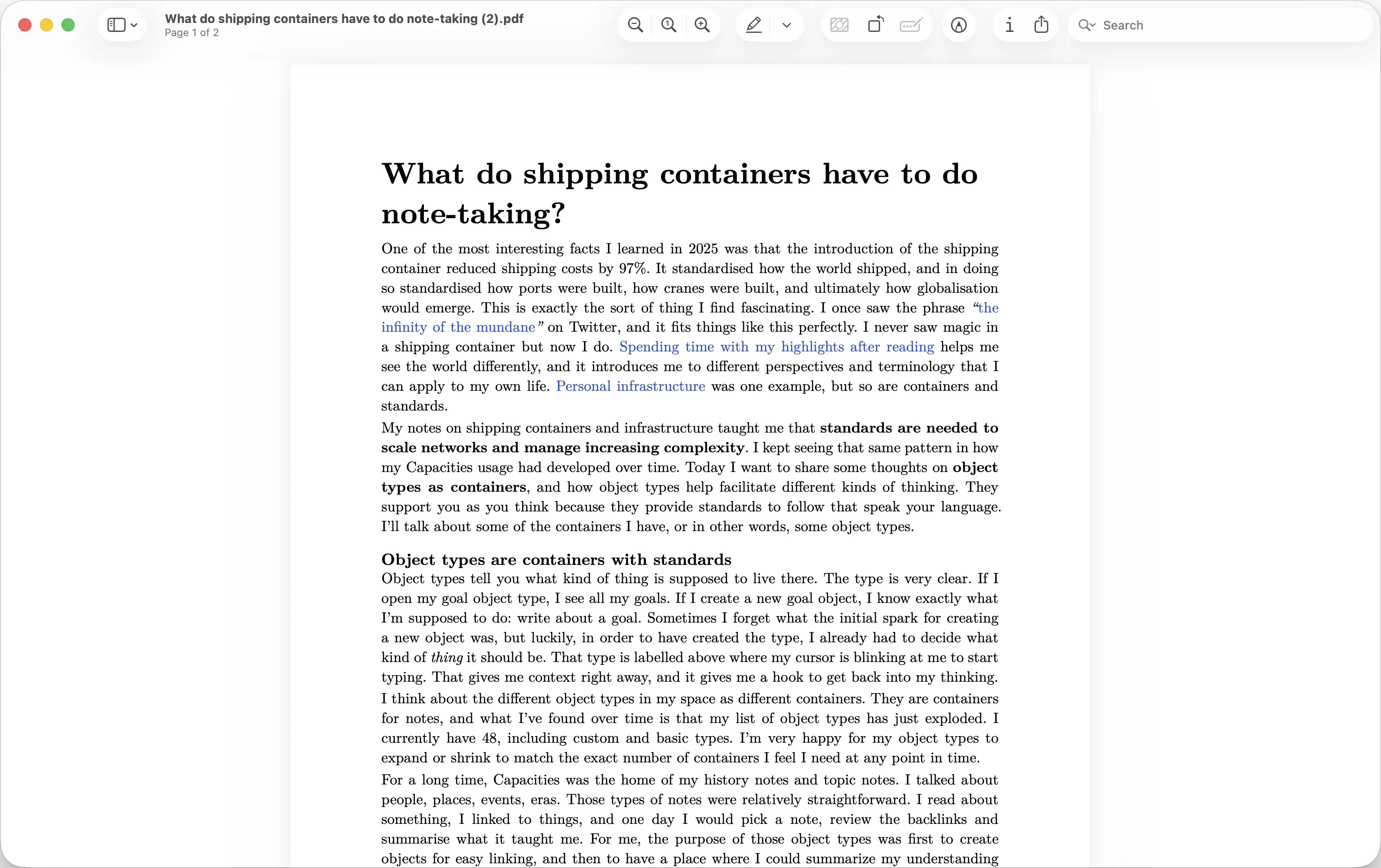
Capacities ProWith this update we're also introducing the new export options for PDF. It's still experimental but the vision is to give you access to perfectly typeset PDF documents. You can export a page as a PDF that looks like a document you would send to someone, not like a screenshot of the app. While the existing export is closer to the overall design of Capacities, the new options are aiming for perfect readability, printing, and document-like layout.
Choose a style when you export:
- Notes keeps the look of the page, including colors and embeds.
- Essay is a single-column layout for reading and sharing.
- Academic is a compact two-column layout with numbered headings. It is a layout, not a journal or citation format.
The new export options are part of Capacities Pro and Believer.
PDF annotations and analysis for Pro
Capacities ProPDF annotations, snapshots, analysis, and reader view are out of the Believer beta. Capacities Pro (and Believer) users can highlight passages, capture snapshots, and analyze PDFs on desktop. Analysis and reader view need AI turned on in Settings.
Thank you to all Believers who tested these features and shared feedback!
A big update to AI chats
Capacities ProWe're constantly improving the overall behavior of the AI chat in Capacities. Any feedback is welcome on our feedback board. Here's what's new:
- Long chats can apply tool calls and edits without asking every time. Turn on Auto-approve in the chat. Turn it off when you want to review each change.
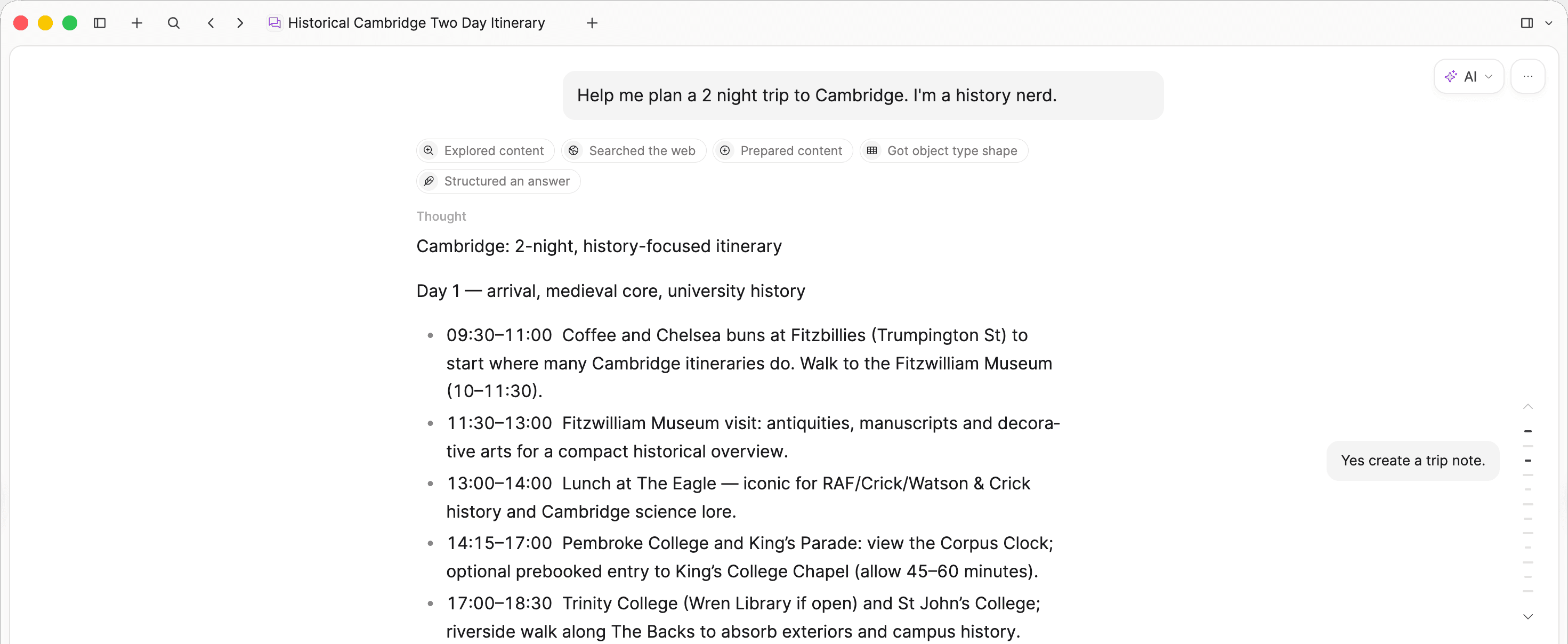
- On desktop, long chats have a message navigator, so you can jump to an earlier message without scrolling the whole thread.
- If you have a calendar integration active in your space, AI chats can look up, create, and delete calendar events.
- You can attach files and block references to a chat.
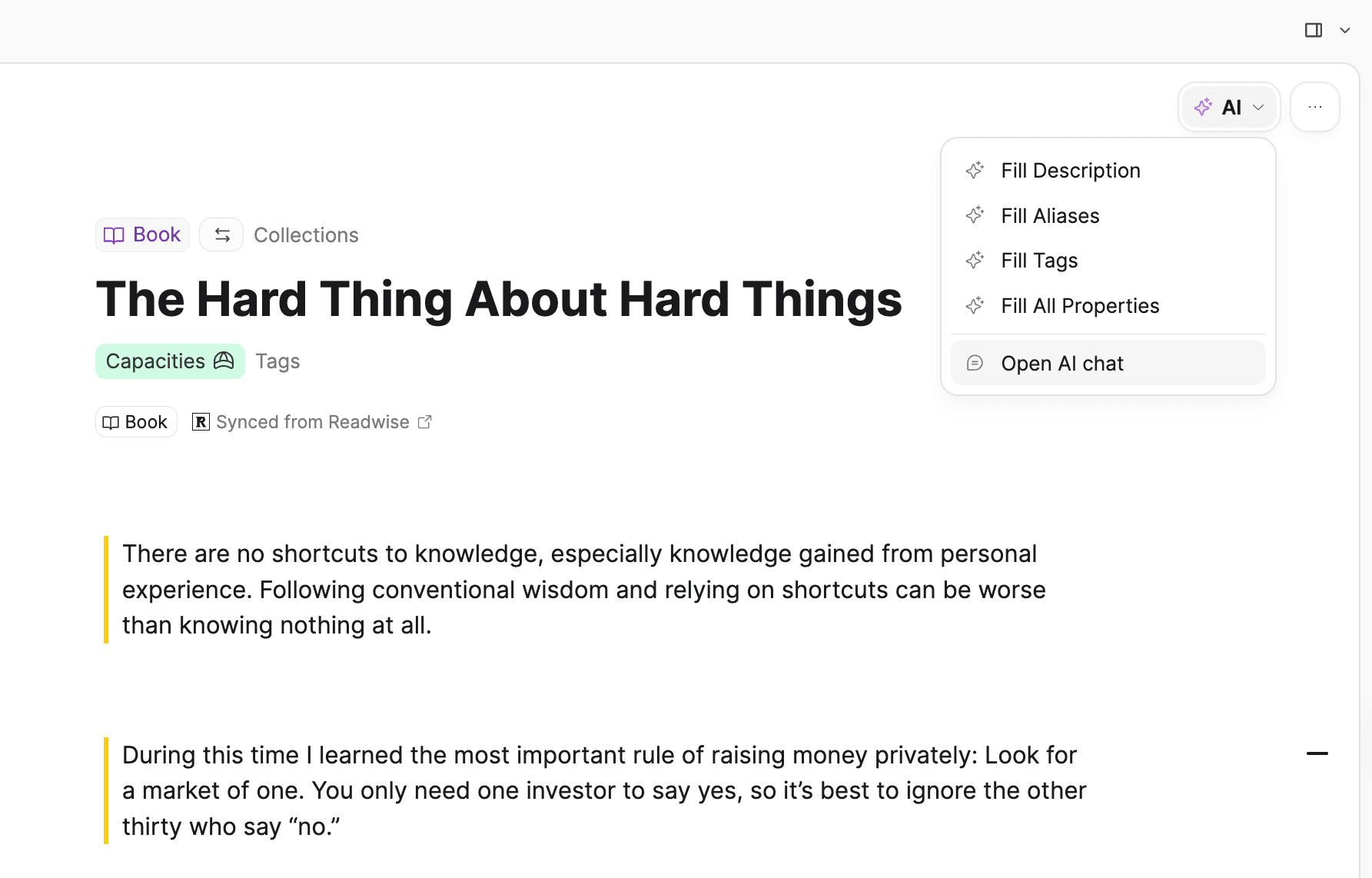
- A new AI menu sits in the top right next to the object menu. It unifies all AI actions across object types, so you can launch a chat, analyze, fill properties, and more from one place.
Full editing capabilities via AI chat connectors (MCP)
Capacities ProWith the new update, you can now use external AI chat connectors like OpenAI or Claude to edit objects and blocks in Capacities. The recently released version history feature allows you to revert to previous states later on if you do want to undo changes the AI made to your notes.
Any feedback on the overall experience is welcome on our feedback board.
Bulk editing of properties
Long overdue, but we're finally introducing bulk editing of properties! Select several objects and choose Edit property. Change the properties they share in one pass.
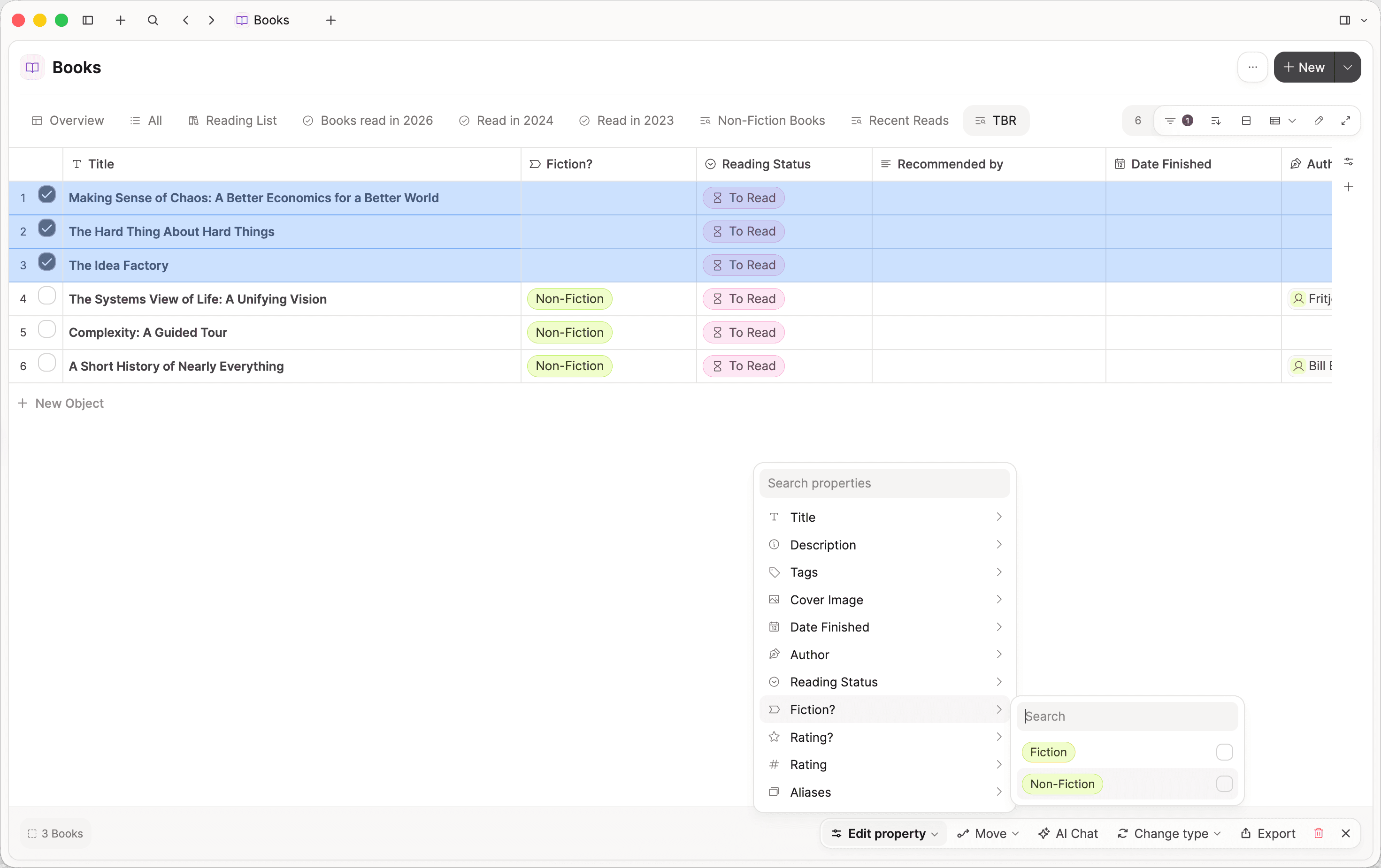
If they are the same type, you can edit text, numbers, checkboxes, icons, dates, labels, links, tags, aliases, and collections. If there are mixed types, you can still edit title, description, icon, aliases, and tags.
Bulk editing allows you to streamline manual work that required a lot of clicks and manual steps before.
Merge tags
You can merge one tag into another. Open a tag and choose Merge into tag. Pick the tag you want to keep. Every use of the current tag moves there.
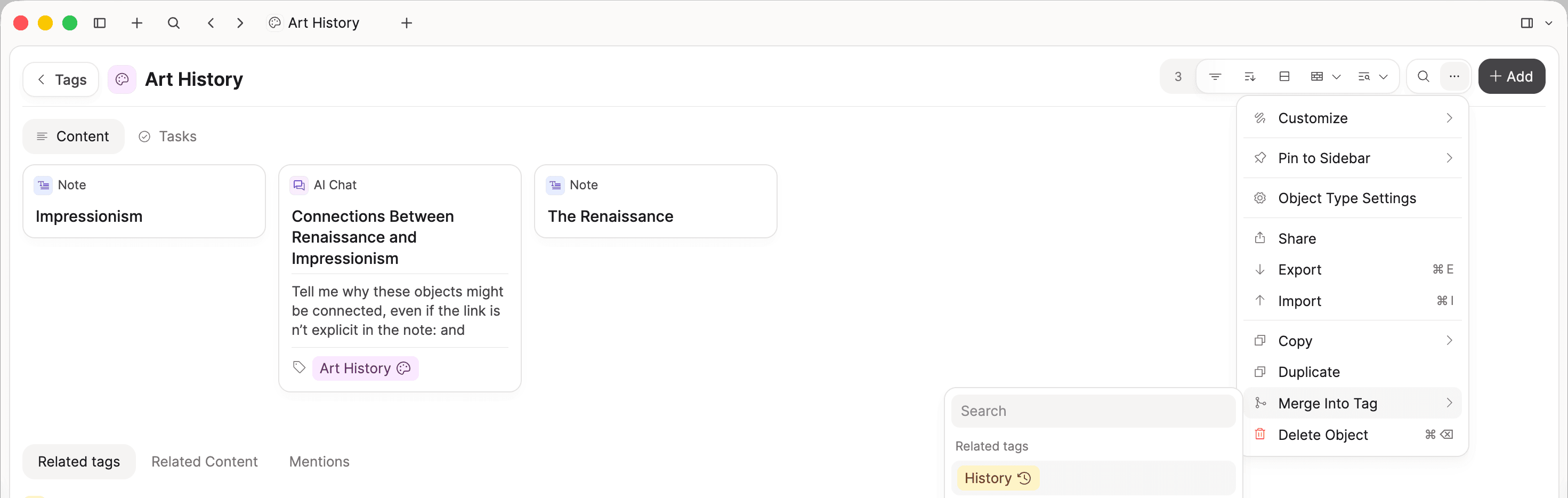
If you have ended up with two tags for the same idea, keep one. You do not have to retag each object yourself.
Reviewing daily notes
At the core of sustainable personal systems are easy, repeatable habits. Capture is a cornerstone habit in knowledge management, and our recent mobile updates, including widgets, make that much easier.
To get the most out of what you capture, it helps to review regularly. In Capacities, that often means reviewing your daily note. The new Reviewed checkbox makes it easy to mark a day as done. Reviewed days show a green dot in the mini calendar, so you can see your progress at a glance.
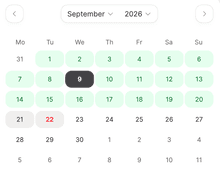
Your Daily Notes dashboard also has a built-in Unreviewed section for days that still need attention. If you do not want this workflow, turn it off in Daily Note settings.
Improved Object Studio
From talking with Capacities users over the years, we've learned that many people share a core set of object types, and use them in similar ways. So we put together an out-of-the-box setup. These types come with connected properties and built-in queries that answer common questions. The idea is simple: open Capacities and get started right away. It shows what the product can do, while covering the use cases we know people love Capacities for.
This is the default for new signups. Existing users can create a new space and choose Basic Setup. You can still customize everything. It is just a head start!
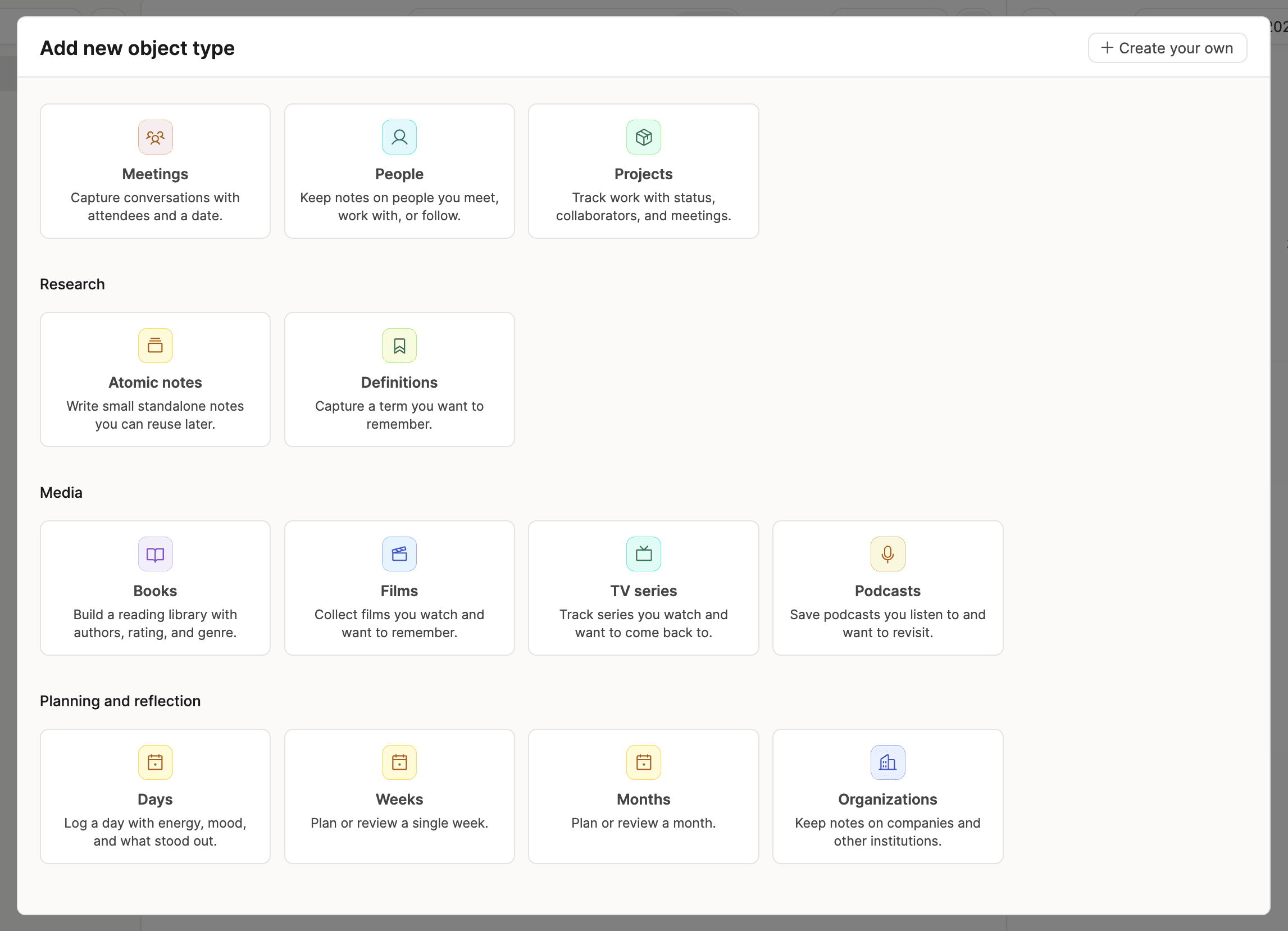
We also added new templates to the object studio. Browse the gallery, pick what you need, and add them to your space, each with useful queries included, intended to support good habits.
✨ Improvements
Sort and filter from table headers
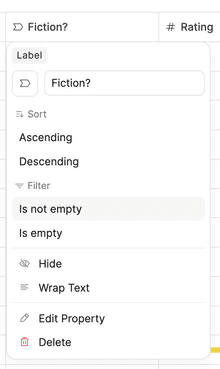
In a table view, you can now sort and filter from the column header. Simply click on the header and select the option. It will be applied to the current view. Not all filter options are available, more complex ones need to be added from the filter menu.
Object Studio and types
- Object Studio is a gallery of types. Select one or more, then add them to your space. Each type comes with queries. You can still create a blank type from Create your own.
- When you create a space, you can start with a basic setup (people, meetings, projects, and books) or a blank space.
- Basic types use gray instead of blue. Change the color in the object type settings.
- When you add a Person type, you can pick Colleague as a category, and you can pick more than one category. The category shows on small cards.
- Type overview headers can show a collections row.
- Objects inside a page: each type heading shows how many objects it has. Click the heading to collapse that type.
Date variables for object templates
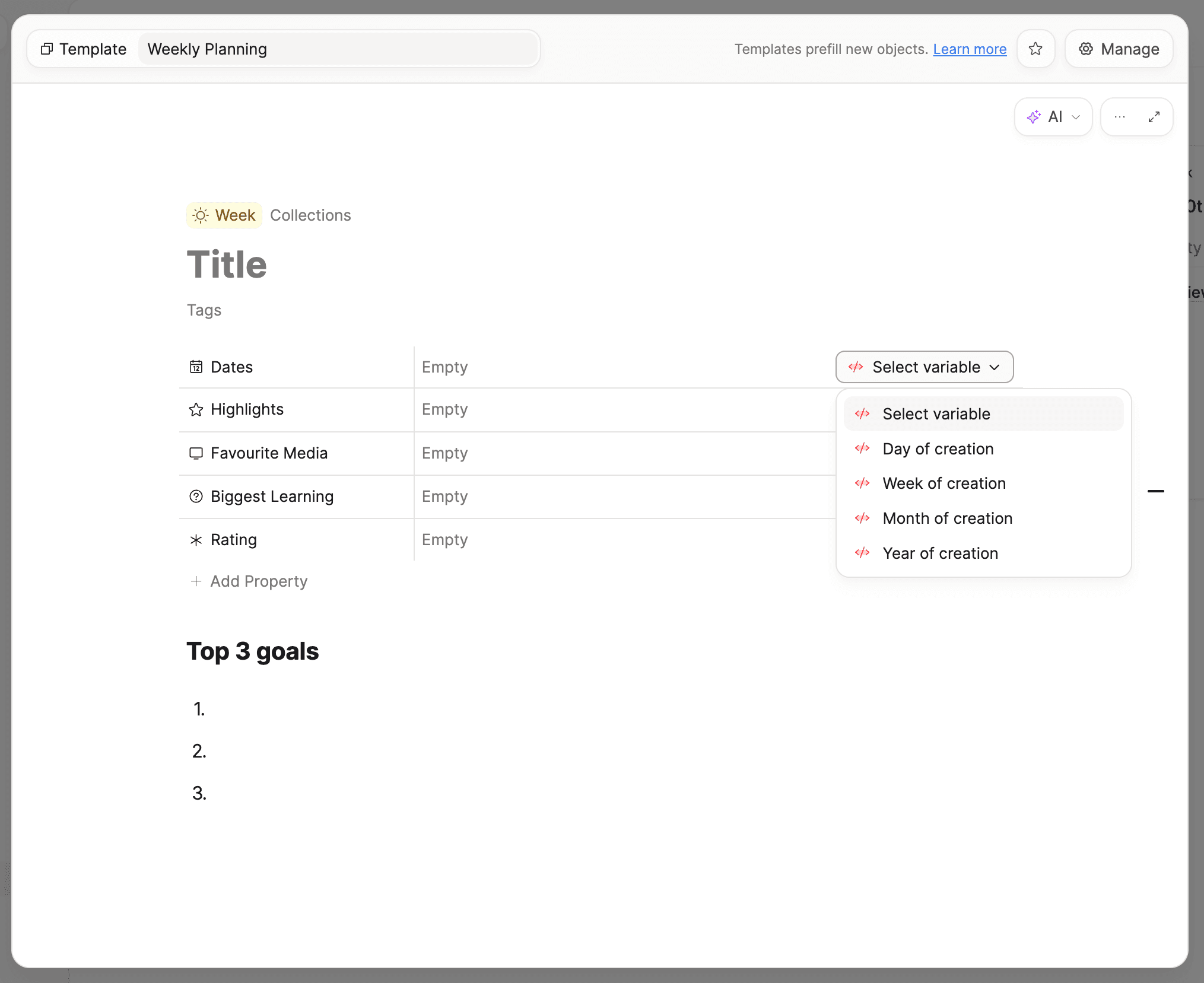
- Date properties on templates can use Day of creation, Week of creation, Month of creation, or Year of creation. If you create from the calendar, Day of creation uses that calendar day.
Cards, embeds, and views
- From the @images picker, you can insert several images at once.
- You can sort groups by size.
- Empty groups in a table view have New object, so you can add a row without leaving the group.
Sharing and settings
- Select several objects and choose Add public read access or Remove public read access from Edit property.
Tasks
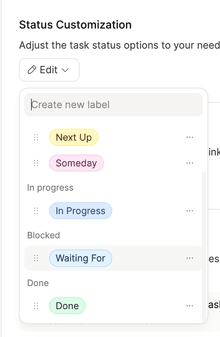
- We're introducing On hold as a new category for task statuses. If you move a status like "Requires answer", or "Waiting for response", to this category, it will no longer be treated as in progress in your calendar.
Templates
- Day is now in the template gallery, next to Week and Month.
- Label property menus open below the cell, so they stay easier to read.
Search
- When you pick an object type, singular and plural both match. Search for "people" and you still find Person.
Notifications
- If a reminder or push setup fails, the toast says what went wrong, and you can copy the details.
Settings and offline
- Open on app start is a per-space setting on this device. It does not sync to your other devices, so each space can have its own start.
- Settings has a Built in Europe footer where you can open diagnostics, copy details, and reload the app.
- Calendar integration settings and your account profile cache in the background, so they still load when you are offline.
AI writes
- When AI chat writes properties, unmatched keys are shown instead of failing quietly. An empty write no longer wipes a title.
🐛 Fixes
AI chat
- Auto-approve waits until the assistant finishes its reply before it applies changes, and follow-up edits keep the right blocks.
- Approving a query in chat no longer blanks the chat.
- Chats that used to stop mid-reply now finish.
- Calendar event times from chat use your local time, not UTC.
Login and startup
- On iPhone, you can paste a login code and use Password AutoFill again.
- After a correct code, the spinner stays until the app continues, so the boxes do not flash back.
- The login check recovers when it fails once and waits longer before giving up, so you get stuck on login less often.
- If the app cannot reach the server, Restart and Log out show on that screen.
Sync
- If your device storage is full, the dialog explains what happened and names the Required only setting, so you know how to free space.
- Change-history polls no longer pile up. If one times out, you see that instead of a hang.
- Loading updates are less likely to get stuck or miss a change.
Tasks
- When a recurring task completes, it returns to the first Not Started status if it had one, instead of always jumping to Open.
- Excuse names the overdue occurrence you are skipping, not the catch-up date.
- Deletes on a recurring task stay after sync, and recurring dates merge correctly when the task comes back from the server.
- Custom task statuses save correctly, and completing a repeating task no longer marks it done twice.
- On a page, task sections are in a clearer order and the Tasks tab shows progress again.
- If you customized GTD statuses, Waiting For stays where you put it.
Calendar
- On desktop, table and kanban on a day fill the pane instead of shrinking to a thin strip. Tasks and Created-on-day tabs fill the leftover space, and All-tab sections stay a usable height.
- Daily view tabs stay on the tab you picked.
- Shift-click on a day sets the range end again, even when range mode is off.
Tables
- On desktop, kanban columns fill the pane when the view is stretched, and the horizontal scrollbar stays at the bottom.
- Cmd-Enter in a table no longer inserts a row both above and below.
Editor
- You can extend a block selection across code and math blocks.
- After you close the command palette or a picker, block shortcuts like delete, indent, move, and undo keep working.
- Inline math is easier to type around. After you insert a formula, you can keep typing next to it.
- If a move or paste fails, the original blocks stay put instead of being deleted first.
Cards, lists, and covers
- Long titles stay inside small cards, even when the title is one long word.
- Gallery image previews on small cards sit in the vertical center again.
- The object menu on a small card is larger and easier to hit, and in a list it stays inside the row.
- Alias chips on a type overview have their height back.
- Wide page covers no longer collapse in a scroll pane, sidebar covers use the full column width, and contained covers on small cards stay rounded.
Data views and dashboards
- Saved query views no longer show a title search, which those queries do not support.
- Kanban backlink groups no longer overlap the button below them.
- Query embed titles keep their size when you collapse the embed.
- Dashboard tabs keep the order you set, including Overview, and the add-tab plus stays after the last tab. You can rename tabs again, including on a phone.
- Recently opened still works when some recent ids are gone.
Menus and navigation
- On desktop, Edit property is no longer in the single-object menu, where it opened bulk edit by mistake. Multi-select from the editor is unchanged.
- Long Change type and Pin to sidebar lists scroll instead of running off the screen.
- Deleted objects drop off the pinned section after the space loads.
Sharing
- If every selected object already has public read access, or none do, you get a toast instead of a silent no-op.
- The Shared overview no longer lists dates as rows.
Tags and graph
- Tag pages always show the Tasks tab, including on iPhone, and tag chips on the object header load on a phone.
- Tags and objects without a title show Untitled in the graph.
Mobile
- On iPhone, requests are more reliable, so the app reaches the server more often.
- On Android, the page goes back to full height when the keyboard hides.
- Analyze and AI actions are back in the object menu on a phone.
Integrations and reader
- Readwise syncs tags again, and Kobo covers come through. Synced from Readwise opens from an embed, not only from the object page.
- Hashtags from external AI chat connectors resolve to tags you already have.
Settings and app chrome
- The Settings section title no longer duplicates as you scroll, and the old Classic payment-update link is gone.
- Find in page sits in the window chrome. A leftover loop that could freeze the app is gone. On web desktop, swipe-back carets no longer show.