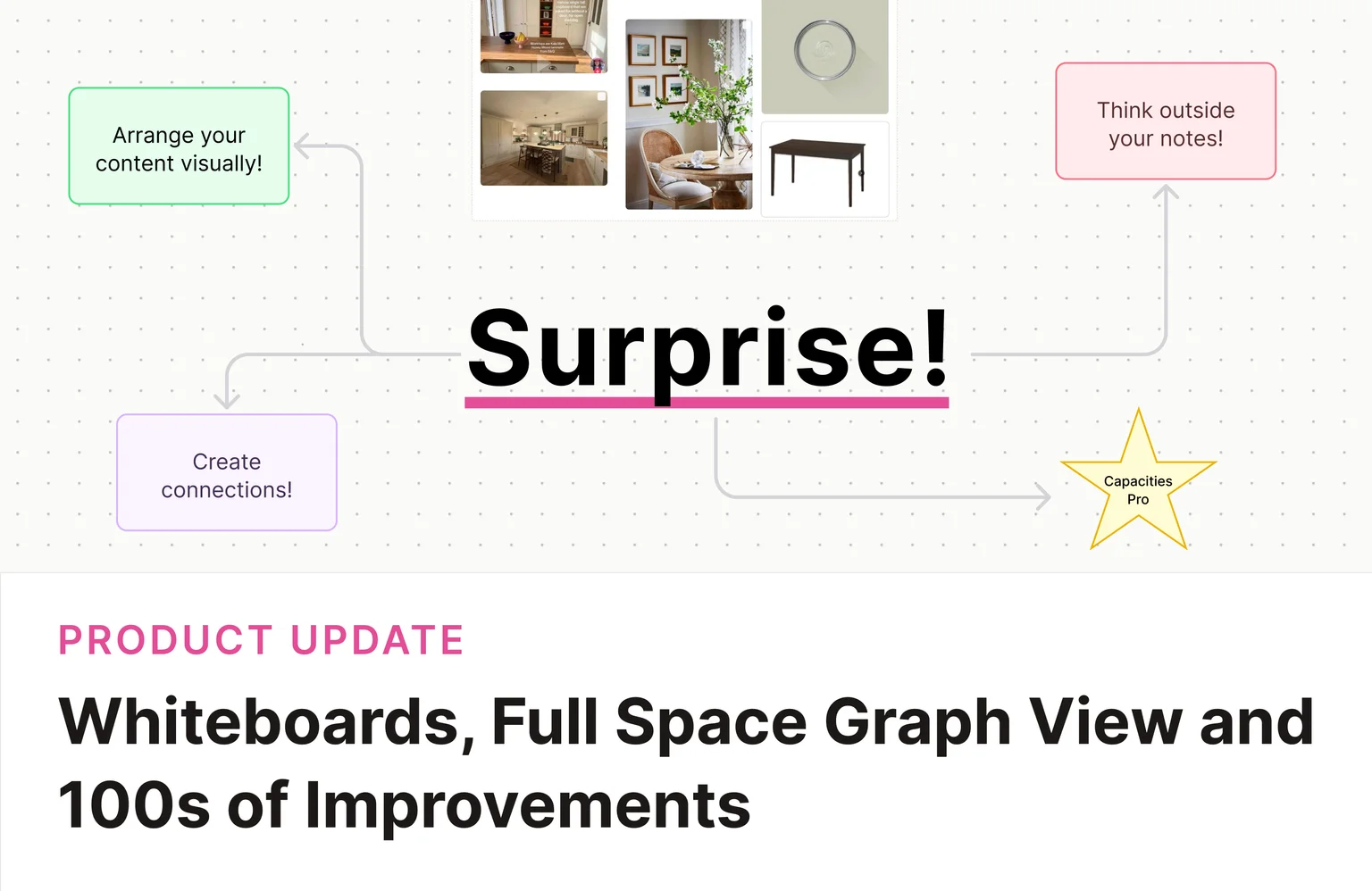
A lot has changed since the last update! We added ways to see your notes, we made the workflows around them easier to run, and we've polished the basics.
Our aim is that Capacities "just works" and this release is a huge step in that direction. 🚀
Introducing Whiteboards
Capacities ProSurprise!
Whiteboards are the feature you have asked for the most, and we are glad to finally add them.
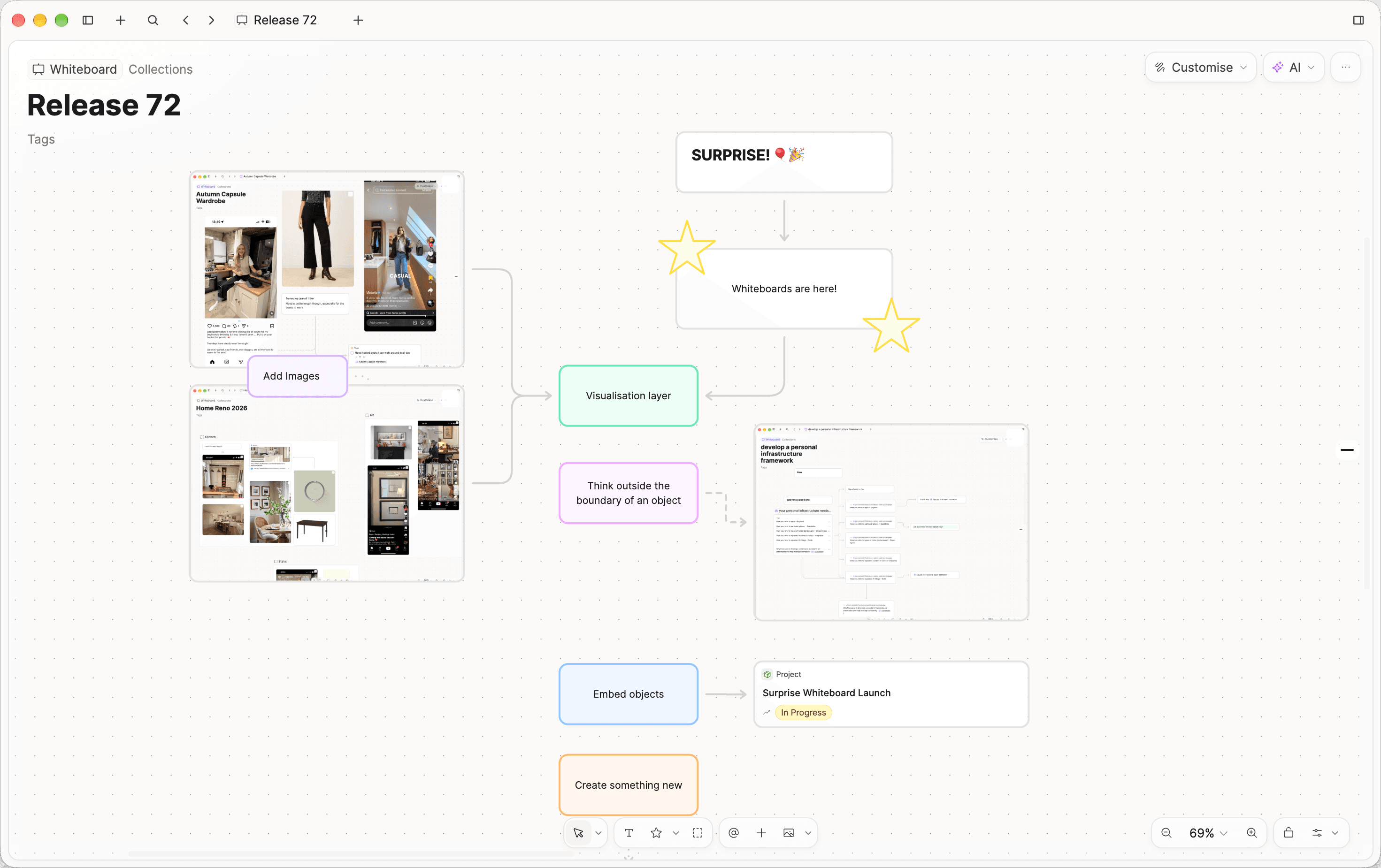
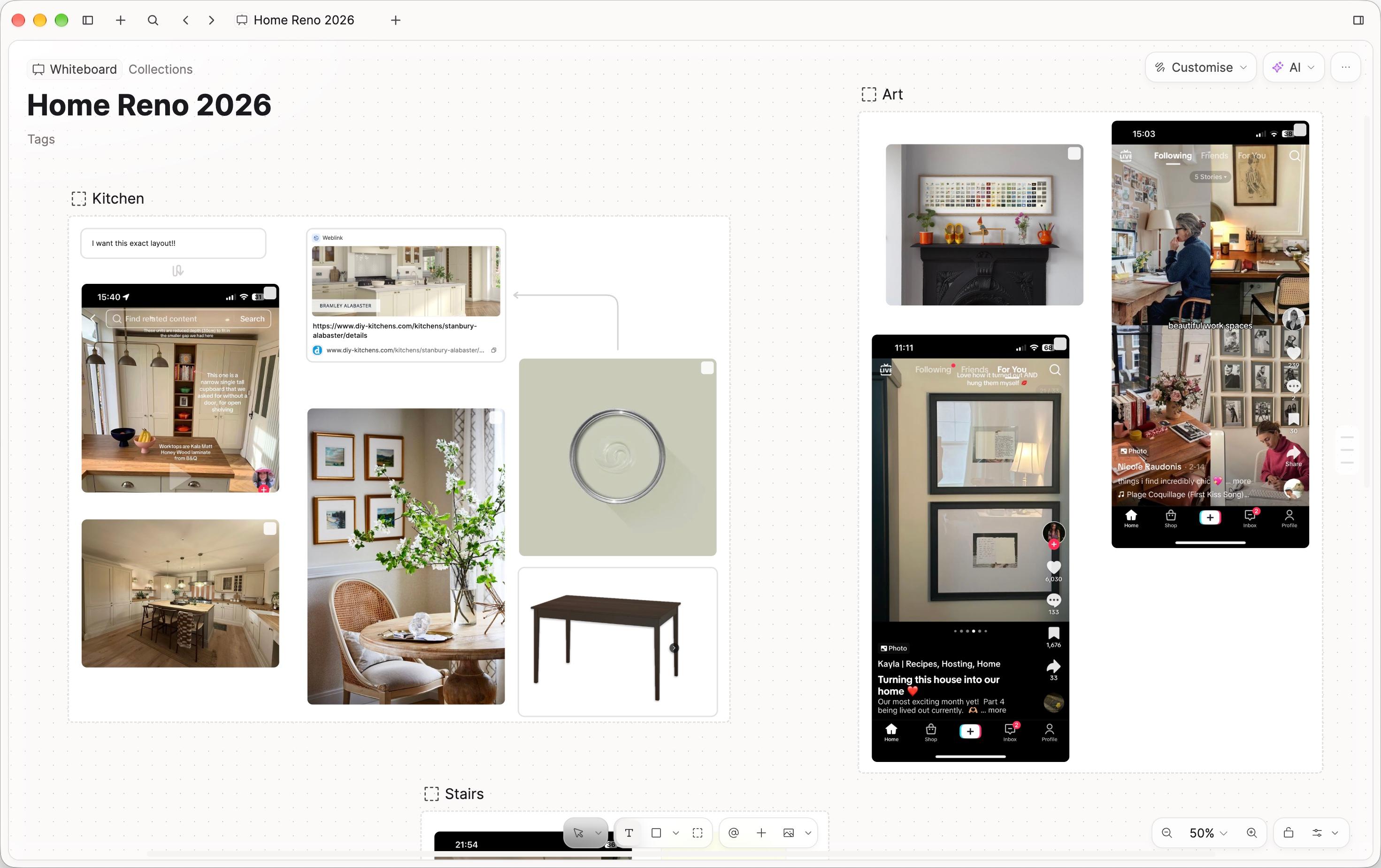
Whiteboards offer a new visualization layer for you to pick up and put down as much as you need. You can lay out the notes, books, PDFs, and daily notes you already have, and develop them further with text, shapes, and arrows. You can use it to make sense of a group of content, or simply to visualize your content in a new way.
Common use-cases are for research projects, moodboards, or diagrams, but the choice is yours!
We hope you love them!
Full Space Graph View
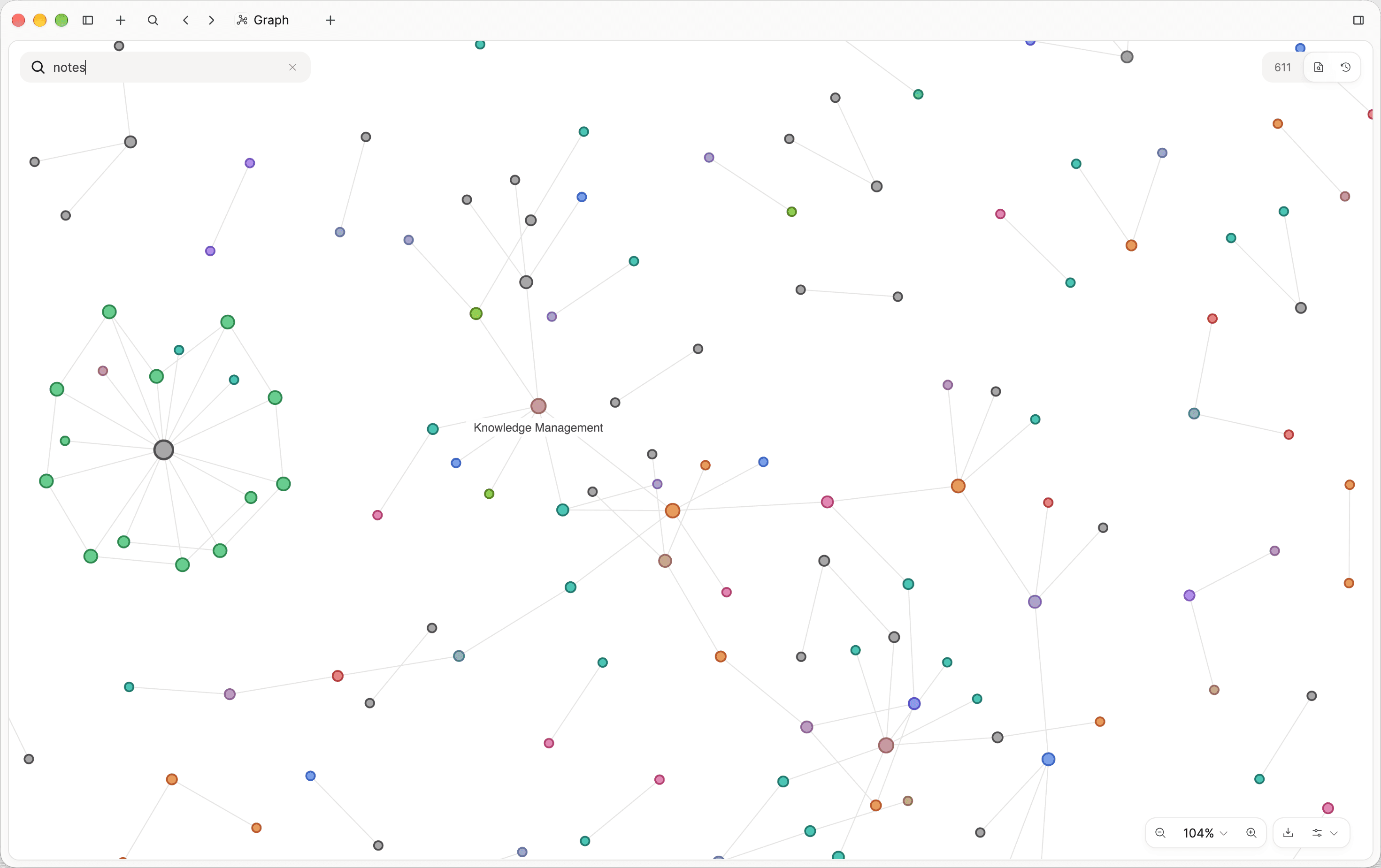
Speaking of visualizations, we've added another long requested one: full space graph view! Open Graph in the left sidebar to see the objects in your space and the links between them.
You can open a graph on a collection, a tag, a query, an object type, and in extended search. It draws the objects in that list and shows all their links. It's a fun new way to dive back into your notes!
On a computer, you can watch an animation of your notes expanding over time. 🍿
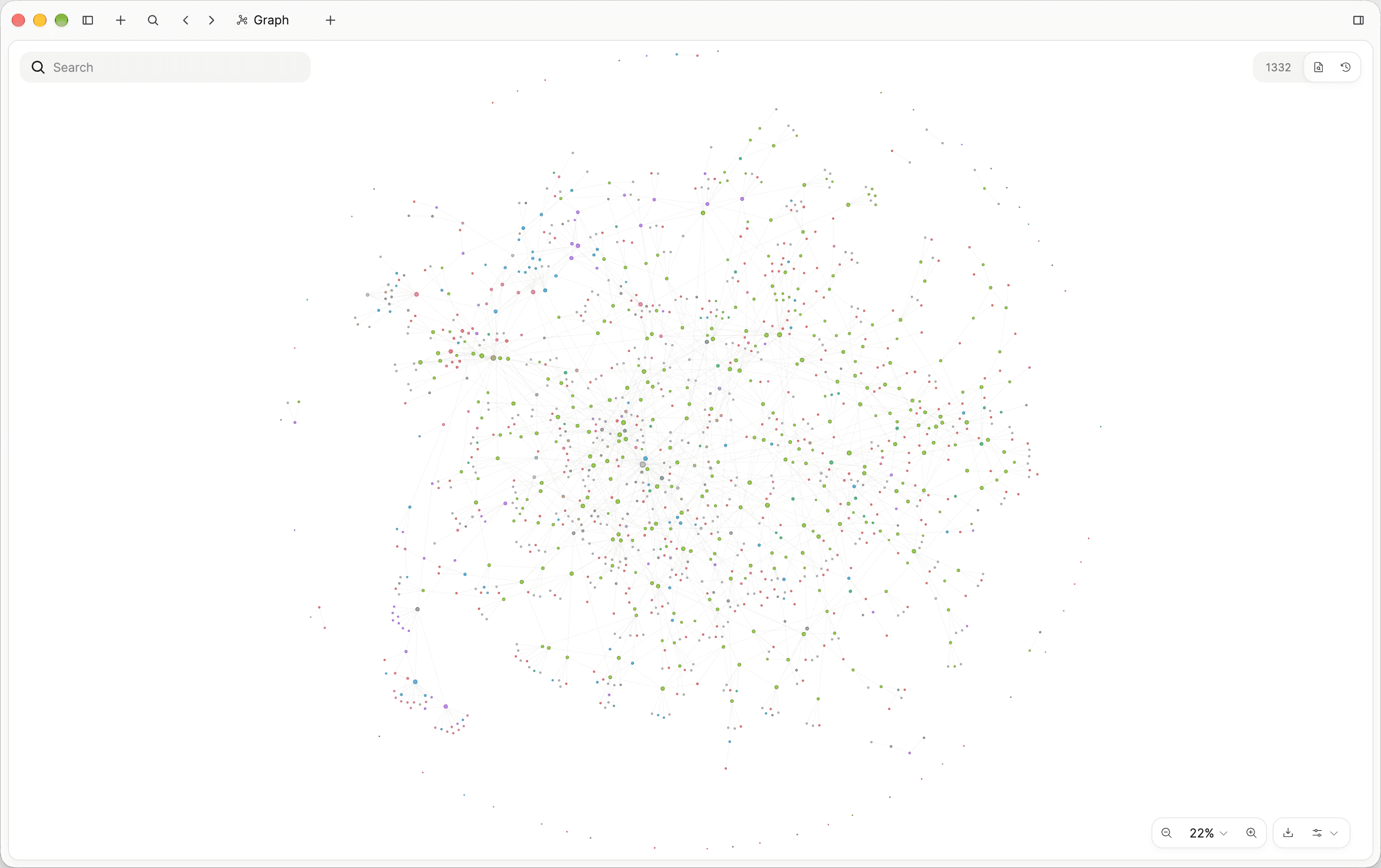
With Capacities Pro, you can type a search term and the graph narrows to what relates to that topic. This could show you some missing links!
Queries 2.0
Capacities ProQueries are incredibly powerful. They let you filter all your notes, to see a subsection however you wish. These views are saved for easy reference: Open Projects, Tasks per client, 5 star books, Films I want to watch, Definitions not reviewed in the last 3 months.
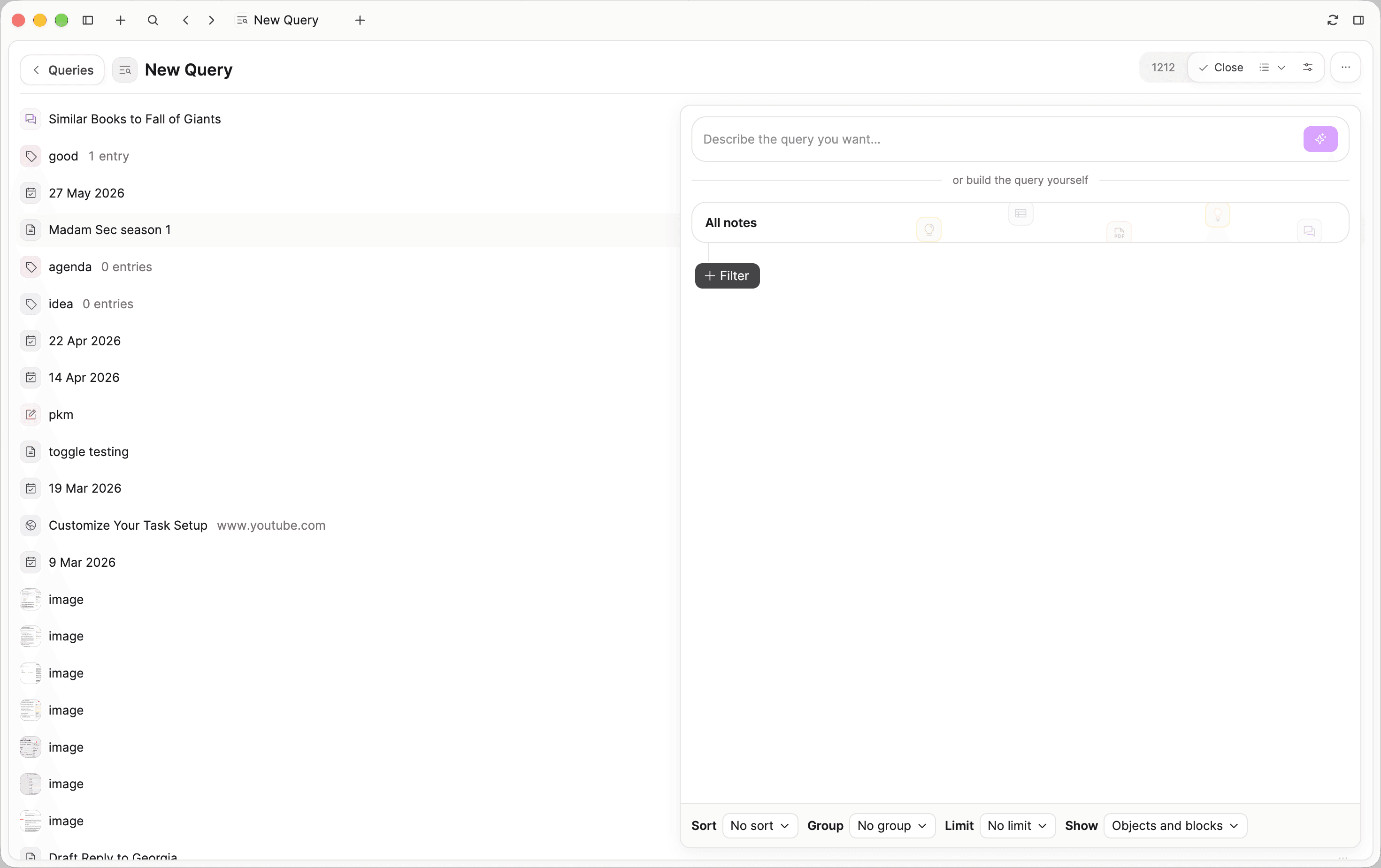
The possibilities are endless, but we needed to make them easier to get started with. With this release, we introduced a better query editor including a query creation box so you can just type what you want to see.
Queries have more power now too.
- A new query starts with all the notes in your space. You then decide what to filter and how to show the results.
- You can save a backlink view as a query
- You can create and edit queries on mobile
We also added new filters.
- Blocks content is empty / is not empty. Find notes that are not written yet, or notes that have words in the blocks. For example, show all empty definitions.
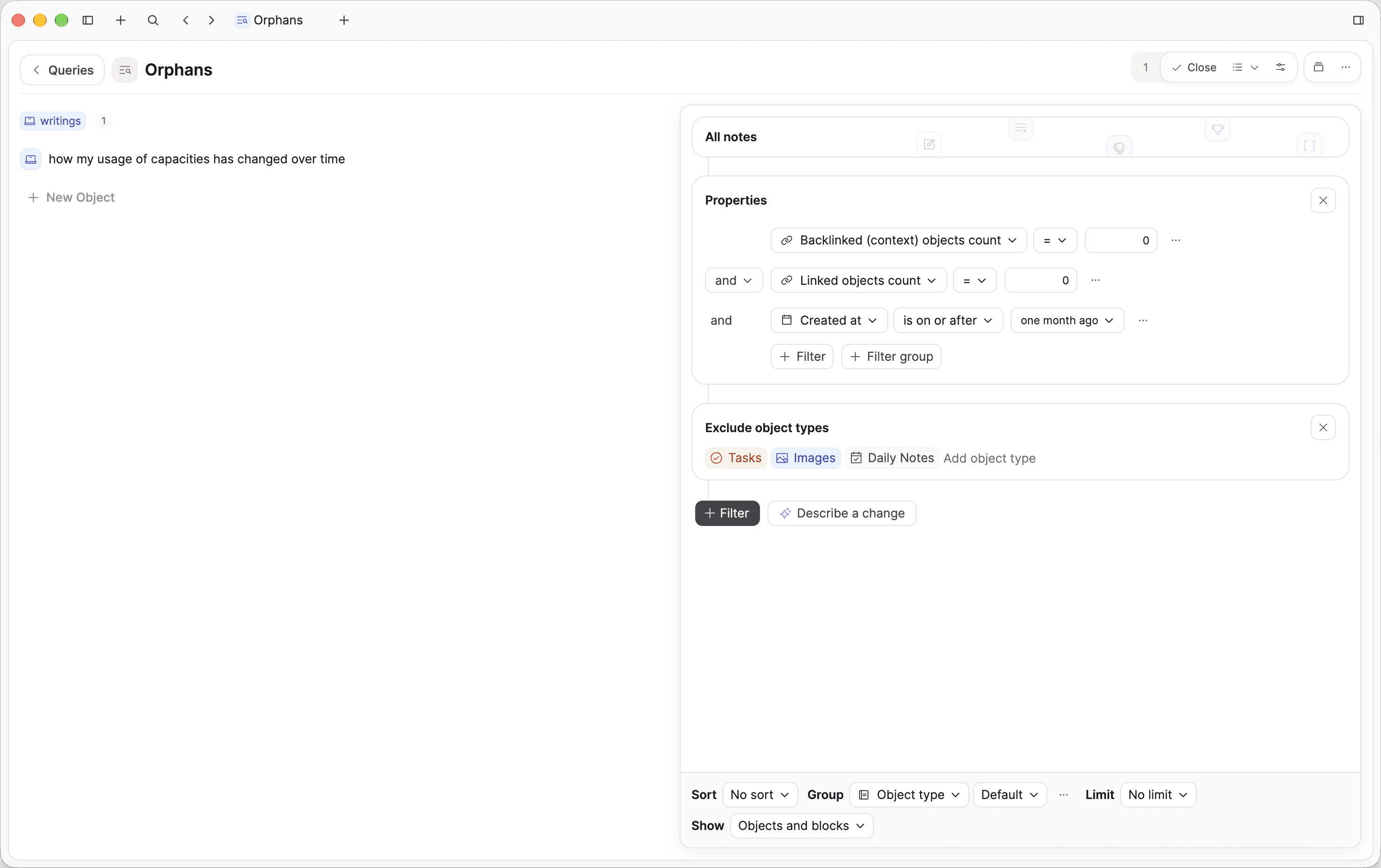
- Linked objects. Count, include, exclude, or filter by the type of what a note links to. For example, show all tasks whose context is a Client, or show all orphaned notes.
- Backlinked objects. The same, for notes that link to this one. For example, show all images with Mum.
View Customizations
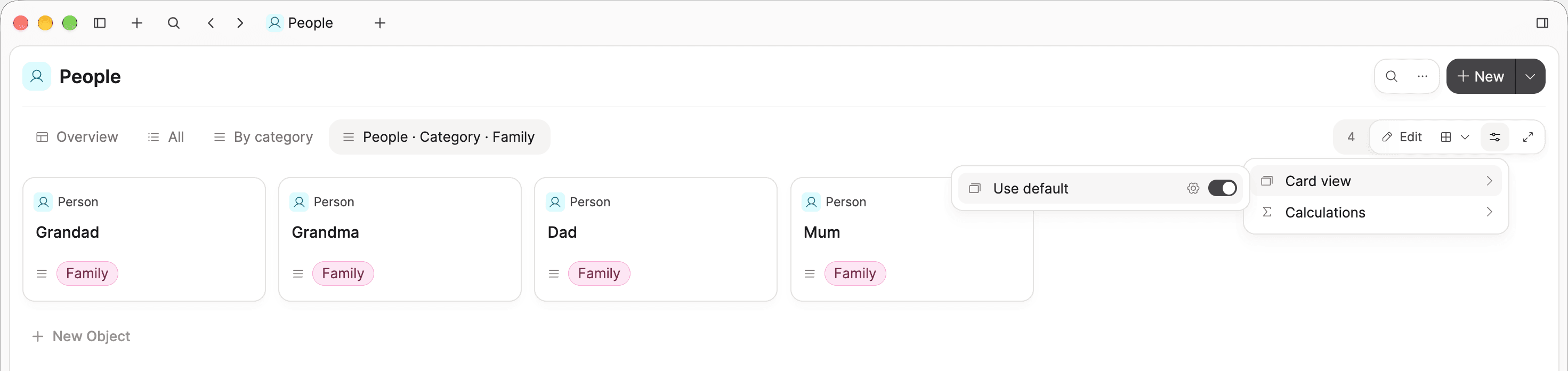
With this release we also bring card and list view customization per view or query. You can either use the default views from the object type settings or overwrite with a customized one. To customize, click here.
We also introduce list view customization. Previously lists displayed only the title and tags. Now the choice is yours!
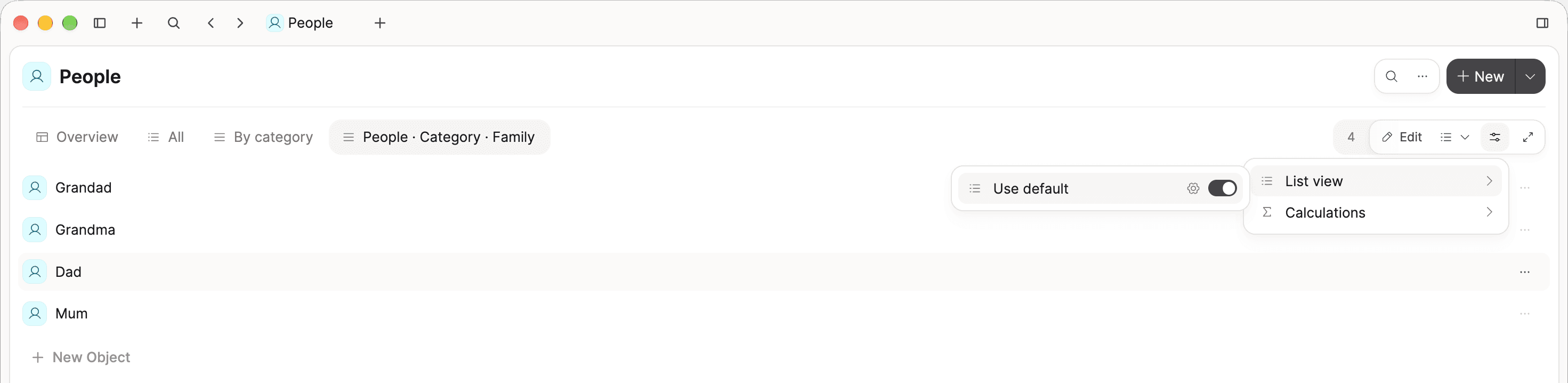
An object type, and each list, can show up to three properties on the right of a row. Leave the choice empty and the row shows none. Tags are one of those properties. They no longer appear on every row.
Calculations in Data Views
In your data views, you can calculate from the objects shown there. For example, you can Sum costs, or count checked boxes. The result will be shown at the top of most views, or in the column footer of the table.
Calculations work across groups too.
Add a calculation from the customize menu in the top right.
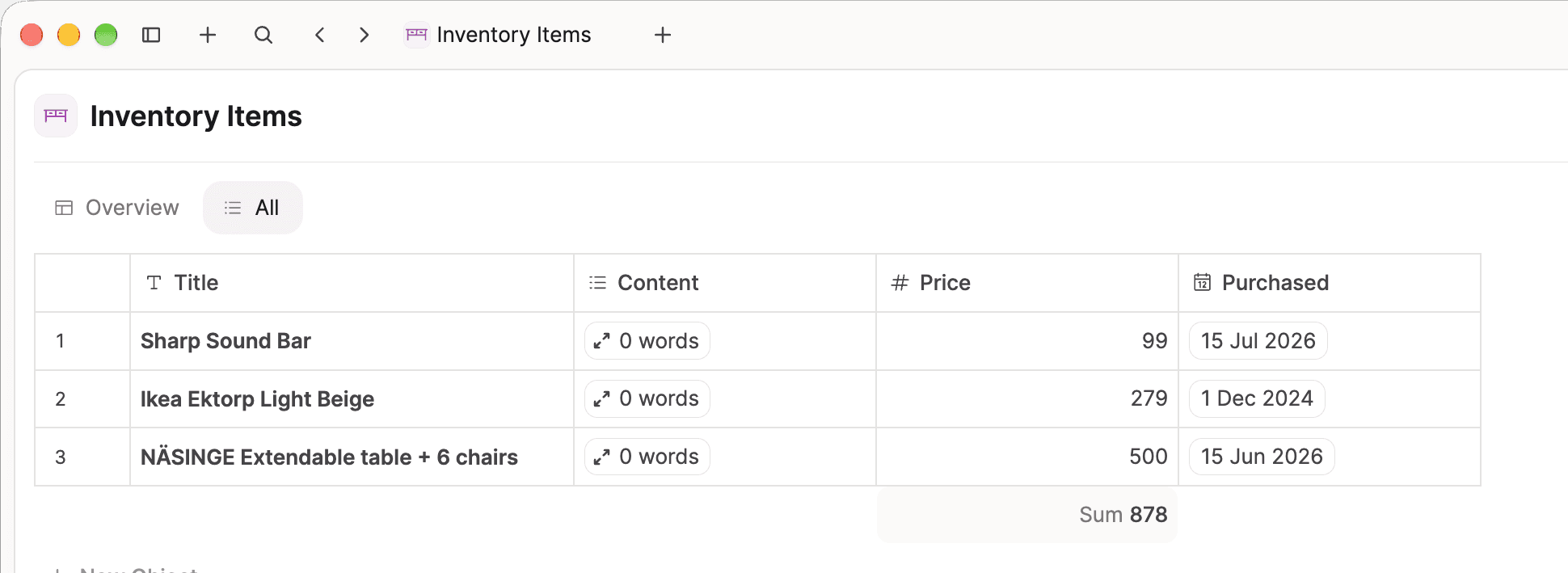
Read the docs for details.
Colored app icons
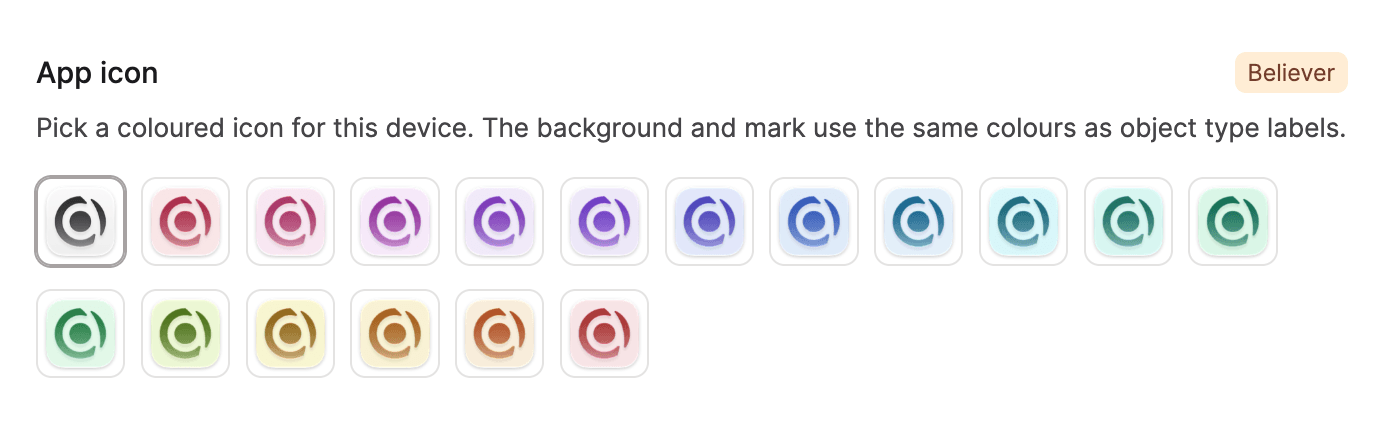
Capacities BelieverIf you are a Believer, you can pick a colored app icon in the 'Appearance' settings. It shows on your iPhone or Android home screen, in the Mac Dock, on the Windows taskbar, and as the browser tab icon.
A New Feedback Board
Feedback has been central to Capacities from the very beginning, and it continues to be a huge part of how we develop the app. Our previous Feedback Board had a lot of friction for ourselves and you as users, so we have moved to a better one, and have already had positive comments around this.
We've also made it easier to submit feedback by creating an in-app form. Click Feedback in the left sidebar, and it'll pop up, prompting all the details we need to fix things efficiently.
Content
New videos and new articles since the last release:
An Updated Getting Started Video
The Core Habits for Sustainable Personal Systems
Réka's maintenance practice & A Sunday Morning Systems Audit
There is no magic solution: on apps, habits and investing time into your personal infrastructure
There will be much more workflow content to come!
Team Offsite
We spent a week in Newcastle together recently and had so much fun!
We had some great conversations and experimented with new ideas. We will share more in the coming weeks. 👀
Polishing the App
We meant what we said: we want Capacities to "just work", which means a relentless focus on improvements and fixes as you'll see in the sections below. It's a lot, 333 to be precise, so be prepared!
If you have more ideas for improvements, let us know via the link to 'Feedback' in the left sidebar!
✨ Improvements
Widgets
Capacities Pro- The home screen has a small widget for each weekday in the current week. The day name uses that weekday's color. The task count sits at the top right, and the card lists up to three tasks.
- Tap a task to open it. Tap the day name to open that daily note. You pick the space when you add the widget.
- The Daily Note widget uses those same weekday colors on the day name.
- New Task and AI widgets can choose a space, the same way the daily note widget does. New Task only lists spaces that have tasks.
- The Record audio widget, and the Control Center button, can record into a space you pick.
- A New Task widget on your home screen opens a new task. You write the title and the rest in the app.
- An unpinned Daily Note widget, tile, or shortcut opens the space you last used. A widget with its own space still opens that space.
Navigation
- Each tab keeps its own history, including after a restart. Phone, tablet, and computer keep their own.
- The arrows in the header move through the current tab. A preview opens over the page you were on. Close it and that page is still there.
- The data view, the calendar day, and your scroll position come back when you go back.
- Space open settings apply at startup and when you switch spaces. Per space, on this device: where you left off, the calendar, today, or a specific object.
- An object link opens on the current tab when the app is already open. Back returns to the previous page.
- Changed due to technical reasons: The browser's back and forward buttons no longer move through the app. Use the arrows in the header.
Graph
- In the top right, you can search for an object and the graph zooms in on it.
- On a tag, the graph draws the objects with that tag and the links between them. Show tags network draws every tag, and a link where one object points at two of them. The space graph has the same tag network option.
- Hide indirect links removes a link that only passes through a hidden object.
- You can filter a graph by object type. Deselect all clears that filter. Links that never touch a visible object stay hidden.
- You can export the current graph as a PNG.
- On the space graph, search finds an object and moves the view to it.
- The graph shows how many objects are on screen, next to search.
- On a computer, Cmd-click or Ctrl-click Graph in the sidebar opens it in a new tab.
- On a computer, hold the pointer on a node and a preview of that object appears beside it.
- On a large graph in light mode, the circles are darker so they stay easy to see.
- The global graph has a timeline mode in the top right. If you click it, the graph populates based on when the objects were created.
Queries
- If you have an embedded query, you can select This object as a reference for the backlink filter.
- You can use that same variable on a text property. If Attendees is text, you can still embed a query about meetings with that person on a person object.
- Object type queries that also use tags show blocks as well as objects. Objects and blocks is the default. Set Show to Objects if you only want the objects.
- You can group a date by hour. An all-day date shows the date only.
- A group can include more than one object type. You remove a group from the same menu as the sort. A query with more than one object type can use a second group again.
- You can filter a date for dates that have an end. The assistant can use that filter when it builds a query.
- Backlinks have the same customize control as other views. Tag pages, backlinks, and collections use the same + Query control.
- On a query page, collections are in the header menu, just before backlinks. On your phone, and in an embed, the collection chips stay under the title.
- When the search field is narrow, Edit and Query become icons so the field keeps its width.
Editor
- Long pages do less work while you type, scroll, and move the pointer so longer documents load and feel faster.
- On your phone, long-press the block bar to hide buttons and change their order. Those choices are saved with your other phone editing settings.
Sidepanel
- Objects inside shows each linked object as a an embed, the same way a backlink does. The embeds are grouped by object type. A button on the right jumps to the link in the page.
Tasks
Capacities Pro- Turn into task and the task actions sit under one button. Undo puts the text back and removes the new task.
- On daily tasks, you can hide columns and change their order from the bar.
Calendar
- You can drop a block or an object onto a day in the mini calendar. That day's daily note is created if it is missing, and the content goes there.
- Dropping a task on a day sets the task's date. A repeating task keeps its repeat.
- Calendar Integrations: An event created from a date includes the object's description and a link back to it.
AI
Capacities Pro- "Fill all properties" has been renamed to "Fill object". It fills the title, tags, description and the empty properties together. You can customize which properties can be filled with AI from the property options in the object type's settings.
- You can hide AI inside the app without turning it off. It stays available through connected tools (MCP).
- Improved UI around the different states of AI autofill to match the visible UI states of the AI media analysis.
- Many small improvements and fixes to the AI Chat to make it more robust and reliable.
Capture
- An image from WhatsApp or Telegram uses a heading or a link in the caption as the title. The rest of the caption is saved as notes.
Share
- On your phone, we added an "Save in Space" option to the share sheet. Images, audios, links and files become objects in the space you pick. They are not added to your daily note.
- You can also tag the objects. The tags you pick apply to every object in that save.
- Several links or files list each item and hide the text field. One item keeps the field, and that text is added to the object.
Search
- Object types rank above notes that only share a prefix. Search for Book and the Book type sits above titles like Booking. An exact title ranks above a longer title that starts with the same words.
- When you search to pin, mention, or set a task context, a matching type can offer to create one. That search uses the same shortcuts as inserting a link.
- A search with several words finds a title that has other words between them.
- Search covers the query you have open. The All view searches every property and can show objects and blocks. A query or a collection still searches titles.
Object types
- You can create object types on your phone.
- Object Studio lists Area as template under Planning and reflection.
Links
- You can select "Inline" as a default link option in the settings of an object type.
- On your phone, a link to a space or an object opens the app.
Pinned
- You can unpin an object type from a pinned section. On your phone, pinned sections have the same add button as on a computer.
Import and export
- An empty page has one place to choose a file. On a computer you can also drop a file there. The formats you can import are listed once.
- A task file imports as tasks. A detected field uses the icon of the property it matches.
- Each migration app keeps its logo in its color chip. In the desktop app, you can open bulk import without starting from an empty page.
- Importing linked Markdown reuses an object when the same type and title already exist.
- Automated full export remembers how many copies to keep, including unlimited.
- A link to an image, a file, or a PDF in an export goes to that file. A link to a note stays a note when that page is in the export.
Media
- Clicking an image or a PDF opens the preview, with notes hidden, even when media is set to always open as a full page.
- After an image is analyzed, you can open the extracted text from the image toolbar.
Tables
- The table customization menu moved to the view customization menu in the top right of the view.
Selection
- You can drag a rectangle to select objects. Drag one selected object and the others in the selection move with it. Dropping them on a group moves all of them into that group.
- The view scrolls while you draw the rectangle or drag to the edge, including sideways on a board.
Settings
- Settings are grouped into "Account", "General", "Space", and "Integrations". "Appearance" and the "AI Assistant" sit in "General".
- You can search settings. A match on a page name also lists that page's sections.
Space overview
- You can rename and delete the default Pinned section. At least one section stays.
- In English, space overview headings use title case.
Appearance
- You can set the application zoom level from "Appearance" settings.
Dates
- Typing a date as eight digits, such as 20261022, fills that day.
Embeds
- You can embed a post from Instagram, Facebook, TikTok, LinkedIn, Pinterest, or X.
Numbers
- There are new number formatting options: "Unit", "Compact", or "Prefix and Suffix". Compact shortens a large number.
Merging of objects
- You can merge one object into another of the same type. That includes two tags, two pages, or two objects of one type. You can do this in the object menu.
- The one you keep holds its properties. Empty properties are filled from the other. Content from the other is added at the end. Links point at the one you keep.
Trash 2.0
- You can open the trash without an internet connection. Permanently deleting an item, or emptying the trash, still needs a connection.
- If the list is missing something you deleted, reboot the app from Account settings.
Colors
- We reworked the look of the color picker and made it searchable.
API
- Semantic search results appear in the API search endpoint.
🐛 Fixes
Editor
- Backspace on an empty object title removes that block. Delete Object on that block removes the block. It does not leave an empty line.
- Bold, italic, or a highlight on a selection that crosses blocks changes every block.
- A space after 2. through 9., or after a number such as 1.2., stays a space.
- Checking a box inside a block reference is saved.
- Undoing a paste also removes objects that paste created.
- After you jump to the start of a line, the next character goes there.
- Long pages scroll, and blocks further down load as you go.
- Pasting several lines into a single-line property keeps the text. Line breaks become spaces.
- In a text property, Escape leaves the caret. The caret stays between two object chips.
- Typing a hyphen or an asterisk stays a bullet when toggles use dots.
- On a computer, a right-click in an empty block still offers Paste.
- On Windows and Linux, spellcheck uses the language you chose.
- Pressing Tab under a heading of the same size or larger turns that line into body text. Enter still starts another heading.
- Hovering a page header shows Customize again, including when the page has a cover.
- On iPhone, the first letters you type stay where you tapped. A quick note keeps the caret. Scrolling or editing no longer paints a black band across the top. The caret in search sits on the text.
- Pasting linked text no longer jumps the cursor to the start of the block.
- On your phone, a tap on a link opens the object. Link actions open when you press and hold.
- On your phone, a toggle stays open when the toggles inside it are already open.
- You can scroll sideways through a table or a row of gallery cards inside a toggle.
- A menu that does not fit on screen no longer flashes when it opens.
- Page aliases sit closer to the title.
- On a computer, Find in page counts each embedded object once.
- You can start a drag selection from a page reference or an embed.
- On a computer, dropping a file on a page shows where it will land.
- Selecting text shows the tag control again.
- On a narrow code block, the language and the actions move into the menu until there is room to show them.
Android
- We resolved an issue when sharing a link from Chrome to Capacities.
- The share sheet closes as soon as you send the page.
- With blocks selected, Back clears the selection. It does not leave the page.
- Adding the Quick Open widget opens the list of objects to choose.
- Setting up the Daily Note widget again keeps the space that widget already shows.
- New Task widgets and Context stay on the space you opened. Back dismisses an empty draft.
- On Android, the link is kept when a share puts the address in the page text.
Cards
- On a task or a daily note, Collections is not in the list of card properties.
- Property icons sit in the center of the rail.
Images
- A web image that does not load shows the copy Capacities has saved, when there is one.
- Choosing an image from tags no longer crashes.
- A chosen image view stays as you set it. Square and full-width embeds no longer fall back to the default layout.
Search
- Clearing an object's title removes that old title from search.
- Search snippets show bold and italic when the match uses those marks.
- Searching for a type shows its plural name, such as Weblinks, without the singular name beside it.
Tables
- Dragging a rectangle to select objects works again after you open another table, query, or collection.
Files
- An image, file, or PDF that Capacities has saved opens that copy. It does not load the original link again.
- A file that fails to load on a bad connection is tried again.
- The download button on a file now works again.
- Saving a link or a file uses less memory.
Mac
- Dragging a block to the edge of the page scrolls the page.
- On Mac, pasting a voice memo no longer creates two audio objects.
Phone
- On your phone, menus no longer draw a line between sections.
- A menu that slides to the next pane stays in step with that pane, including inside another sheet.
- Adding a property no longer jumps to full screen while the sheet is opening.
- If the app reloads after it was in the background, the launch splash shows instead of a flash of the old page.
- On your phone, customizing the text toolbar no longer closes itself.
- On your phone, columns further along a board show their cards.
- On a phone, the graph fits its panel.
Preview
- The page count on a preview stays in place while you move between pages.
- Opening a preview no longer shows the same error twice.
Paste
- Pasting a table keeps a cell that wraps onto the next line.
- A cell that contains a pipe stays one cell. That includes a table copied from Notion.
Links
- Copy on a link copies an email address or a phone number now works again.
- A link copied from Outlook on Windows pastes as a link, not a code block.
- A web address with extra spaces is trimmed. When the address is valid, the dialog continues.
Tabs
- The line between tabs hides beside the open tab, and beside a tab under the pointer. The tabs at the top of the window and the tabs in the side panel hide that line the same way.
- A pinned tab stays on its page. Opening another page opens a new tab.
- The tab you pick on an object in the sidebar stays on this device.
Queries
- A query, an object picker, and a table group hide deleted objects.
- The option buttons on an open query stay on the right, including inside a column.
- Opening a preview from a query no longer leaves the back trail and page buttons on top of the results.
- A query embedded in a page no longer leaves a blank band under the results.
- On your phone, a query embedded in a page opens from the object menu. The title is no longer cut off.
- A selection rectangle stays hidden while you are already dragging a control on the page.
- On your phone, a query shows New in the header. An empty query has it too.
- You can start a rectangle beside the view title.
- Dragging toward the edge keeps scrolling when the pointer moves onto the frame or the tab bar.
- A collapsed query on a page shows its full title.
- Shuffling a query opens the preview.
- An embedded table or kanban grows with the page.
- A gallery wider than the pane scrolls sideways.
- On your phone, a tag, query, or database stays a list. The layout menu is hidden.
- A progress bar uses the color you picked.
- When there is little room, the view controls stay on the header.
- Saved queries show again on an object's overview and in the add menu.
- A short embedded table fits its rows. A table that fills the page still fills the page.
- View controls stay in this order: Edit, the layout, then Customize. An open embed leaves space under its header.
- An embedded query title shortens before the option buttons, so those buttons stay visible.
- Grouped lists use the usual space between rows.
- While a grid, wall, or gallery loads, the placeholders match that layout.
- A grouped view sits in the content column, including Created today.
- On a narrow query, Edit, the layout, and adding a query stay visible, and the results show.
- This object can be combined with tags and backlinks.
- A query that does not name an object type stays within the object types in the space.
- A query embed no longer adds a loading label. The placeholder matches the width of the loaded result.
- Query controls stay put when wide filter chips collapse.
- A tag query that filters to people on this object keeps that filter.
- You can move a later sort to the top. The query stays as it is.
- On a small card, Empty opens the tag picker.
- A filter on a collection, tag page, or backlink clears on the next visit. Sort and group stay.
- A query shows a loading state while results are on the way.
- The customize menu shows an empty state when a view has no groups and no calculations.
- Query filters are labeled by what they filter.
- A daily note day filter matches notes created later that same day.
Lists
- "Select multiple" is back on a collection row and a tag row.
Space overview
- Pressing a section title opens and closes that section. A small movement no longer starts a reorder.
- Dragging a section on the space overview keeps that section's text size.
Calendar
- Creating a week object from a Sunday uses that week's number when your week starts on Sunday.
- Sorting by a date that has a start and an end uses the end of that range.
- On a computer, the daily note outline stays on the note, to the left of the calendar.
- The calendar sidebar lists objects whose date property falls on that day. A date written in the page does not appear there.
- On your phone, the handle under the week strip is shorter.
- A date reference highlights like a list row.
- An open task stays on the day it was dated, including past days.
- Dated objects show in the calendar sidebar again.
- You can open the calendar in the side panel. Your tabs stay after a reload.
- On your phone, the calendar has its own Created tab. Created objects stay out of the day timeline.
- Table and kanban on a day scroll with the page again.
- A slow calendar no longer stacks the same events over and over.
- On a date, the hint for creating a calendar event sits above the date. Typing October 20 sets the 20th of this year. The custom repeat menu uses the plural when you choose more than one.
Code
- You can save a Mermaid diagram as a PNG.
Tasks
- On your phone, the date on a task opens the calendar. The time you already set stays.
- Creating a task from the quick task window no longer shows a created-task message.
- On your phone, tap the context row on a task to pick a context. That tap no longer opens the linked object.
- A task shows its deadline even when that deadline is empty.
- A long task title wraps inside a small card.
- On your phone, you keep a new task with Return or with the button. The Status list fills the screen.
- New tasks on the daily calendar use a plus icon.
- On an embedded task, Open and the object menu sit to the left of status, date, and priority.
- You cannot set Context on a task template. You get a toast. Tags still work.
- A deleted note no longer shows in a task's context.
- A long date on a task card stays inside the card, so the status stays visible.
Desktop
- A trackpad swipe moves back or forward only in the main app, and only when no dialog is open.
- Opening Capacities again waits for the window that already has your space. Signing in, creating an account, or connecting Claude does not close that window.
- On a computer, the weblink toolbar sits below the tab strip.
Pages
- Leaving a page keeps the place you were reading, in the main page and in the side panel.
- An empty page no longer has an Import tab. Import stays on the object menu. The page shows Templates when there is a template to apply.
- On an "Encyclopedia" page, dragging a block toward the edge scrolls the page.
- The outline marker follows the heading you are reading.
- A weblink keeps your reading place. A PDF keeps the page you were on.
- The space at the end of a page, before backlinks, is taller. A click there focuses the last block.
- If an object is deleted while you have it open, you leave that page.
- A tag page shows the content and tasks tabs only when that tag has a task.
- A Markdown image on its own line imports as an embed.
- Pasting an image into a single-line field keeps it as a mention.
- Recently opened leaves out objects that are not in a collection.
- A group without a color stays readable in the light dimmed theme.
Menus
- A submenu that opens stays open while you move the pointer across to it.
Sidepanel
- Dragging from the right edge of the window opens the side panel. The strip is only at the outer edge.
- A panel opened that way stays open while the pointer is over it, so a drop can land. Moving back to the left closes it. A panel that was already open stays open.
- Open in side panel is available for the page you already have open.
Windows
- The title bar buttons follow the page when a preview or the command palette dims the window.
- On Windows, the window buttons no longer cover the top bar.
PDFs
- An image in an exported PDF keeps its proportions.
- A highlight that crosses pages opens the highlight toolbar and covers every page it spans.
- Opening a PDF at a highlight lands on that highlight. A highlight inside a column stays visible.
- Page width fits a PDF inside the viewer.
- On a computer, dropping a PDF onto an object embeds it.
- Highlights stay on the page, including in columns and on a scanned page, and on iPhone.
Audio
- A long transcript shows in full. Copy and the media reader use that full text.
- On iPad, a recording stays saveable after a reload, a call, Siri, or dictation. The timer keeps running.
- The control to copy an audio transcript sits with the other controls, not on the first line.
Recently opened
- A deleted object no longer appears in "Recently opened".
Spaces
- A deleted space no longer appears in the spaces menu.
- Opening Capacities in a second browser tab asks you to use it there.
Sharing
- On your phone, Share on an image, PDF, audio file, or file opens public sharing. Download still saves the file.
Import
- When you import into a chosen object type, images in the text stay images.
- Choosing a Markdown file works, including on Windows.
- Importing a spreadsheet updates links only for the objects that import created.
- A long property name no longer pushes the arrow or the property you pick.
- Import and templates stay hidden while you are getting started.
Mentions
- Opening a mention of a block scrolls that block into view in the preview.
Account
- Scheduling account deletion cancels your subscription right away.
Tags
- A collapsed tag embed no longer leaves an empty band. Tag and collection embeds use the same spacing as a query embed.
- On a tag, search hides when the title would be crushed. "Filter", "Sort", and "Group" stay.
- On your phone, long-press a tag, a collection, or a property chip to remove it.
- "Gallery" tag cards fill the height of the row.
- A pinned collection shows the collection icon when you have not set one.
AI
- When you hit the Capacities AI budget limit, analyze and transcription show a message and stop.
- A nested list from AI stays a list. A deeper item no longer turns into a code block.
- AI chat can edit a table embedded in a page, including on iPad, when that table was not fully open.
iPad
- Highlight and text color open from the formatting bar. The selection stays, so the format still applies.
Properties
- The button that opens properties stays on the page, beside the properties panel, above the type and title.
- You can click an empty content property and type.
- A property set to hide when empty hides again after you leave it blank and reopen the object in the side panel.
- Changing a property's type closes the dialog once the change has started.
- Blocks you add stay when that object is also open on another device. Notes on a PDF highlight stay too.
- A two-way link also shows on the other object, even when that object was only a preview.
Objects
- When you merge two objects, tags, labels, aliases, and other lists gain values the remaining object does not already have. A property with a single value stays as it is.
Graph
- When a graph has nothing to draw, it says so. When the filters hide everything, it says that too.
- Opening a node follows your setting for how a page opens.
- On a computer, Shift-click a node on the graph opens it, including when that object was not fully loaded yet.
- A shared page no longer gets a green outline.
Navigation
- If you go back from a space you cannot open, you return home.
- Beside a tag, query, or database title, earlier pages open from a menu.
- While a preview is open, the back and forward shortcut closes it. In the browser, that shortcut moves through the current tab.
- An old "All notes" tab or link opens the calendar.
Daily notes
- When reviewing is off, "Reviewed" is hidden on the daily note, on an embedded daily note, and on small cards.
Views
- Scrolling a kanban sideways keeps the nearby columns in place.
- On your phone, a page with many modes shows the later ones.
- A large gallery stays responsive as you scroll.
- The highlight on a kanban group header spans the full column.
- The property list does not show an edit label when you hover a row.
- A resized image in a slide keeps its alignment.
Media
- In Safari, audio on a shared page plays. Embeds and PDFs stay visible.
- Highlighting text on a web page no longer flashes a menu in the corner.
Collections
- You can rename a collection or a query from the title. On a full page the title is always editable. Inside a page, double-click still renames it.
Export
- Collection CSV export fills description and tags. Description is the description property, not the page body.
- A markdown export links each image and file to the file in the zip.
- Export and integrations use the same offline message when you need a connection.
Apps
- On iPhone, Capacities is listed again when a Shortcut shares with apps.
- On iPhone, the app stays signed in, and downloads finish.
- On iPhone, iPad, and Android, the app reaches Capacities again.
Getting started
- Object types you choose while signing up stay after you create your account or reload.
- On your phone, First steps fills the screen and scrolls clear of the buttons.
Trash
- Emptying the trash asks you to type "Delete" in the language you use in the app.
What's new
- The release notes dialog stays off login and sign-in screens.
Databases
- The database title lets go of the cursor when you click away.
Login
- Icons on home screen widgets stay visible on a clear home screen.
- A backup code can include letters. The code from an authenticator app stays numbers only.
API
- Updating an object through the API keeps two-way links in sync.