Readwise highlights, ready to think with.
Pick the books and articles you want to work with. Capacities brings them in from Readwise or Reader with every highlight, keeps adding new ones as you read, and puts them next to the rest of your notes.
Part of Capacities Pro. Works with Readwise and Reader.
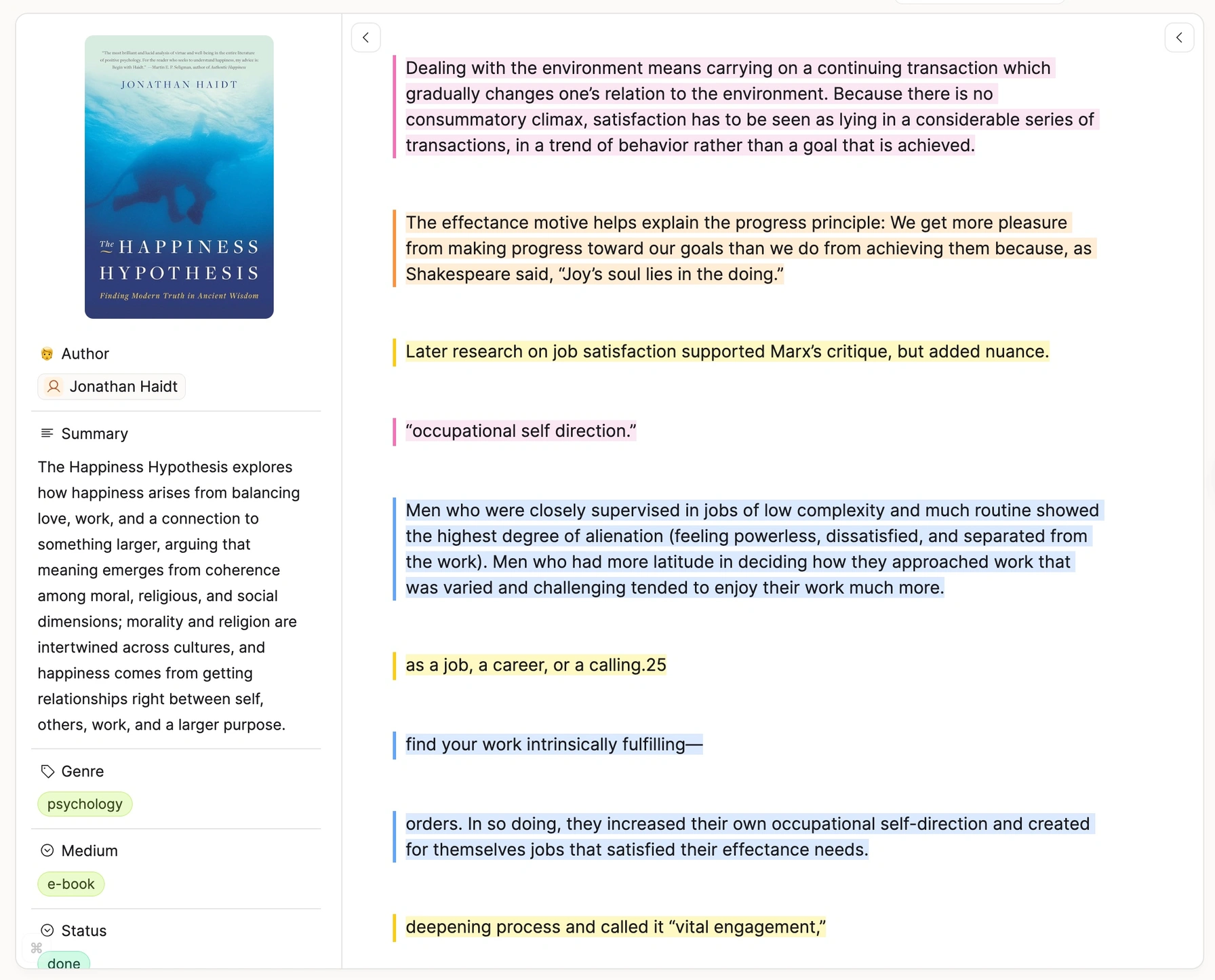
For readers who want to do something with their highlights
Readwise is a great archive. Capacities is where you think about what you read.
You highlight a lot, in many places
Books on Kindle and Kobo, articles in Reader, PDFs. Readwise already collects them. Capacities is where you work with the few that matter right now.
You don’t want a second archive
Nothing comes in unless you ask for it. You pick a document, and you get that document with its highlights, not ten thousand at once.
You want reading to connect to your notes
A highlight can link to a person, an idea, or a project, and it shows up on their pages too. Your reading stops living in its own app.
From a highlight to a connected note
What happens between reading something and finding it again when you need it.


Highlight as usual
In Reader, on your Kindle, or anywhere Readwise collects from.
Pick the document
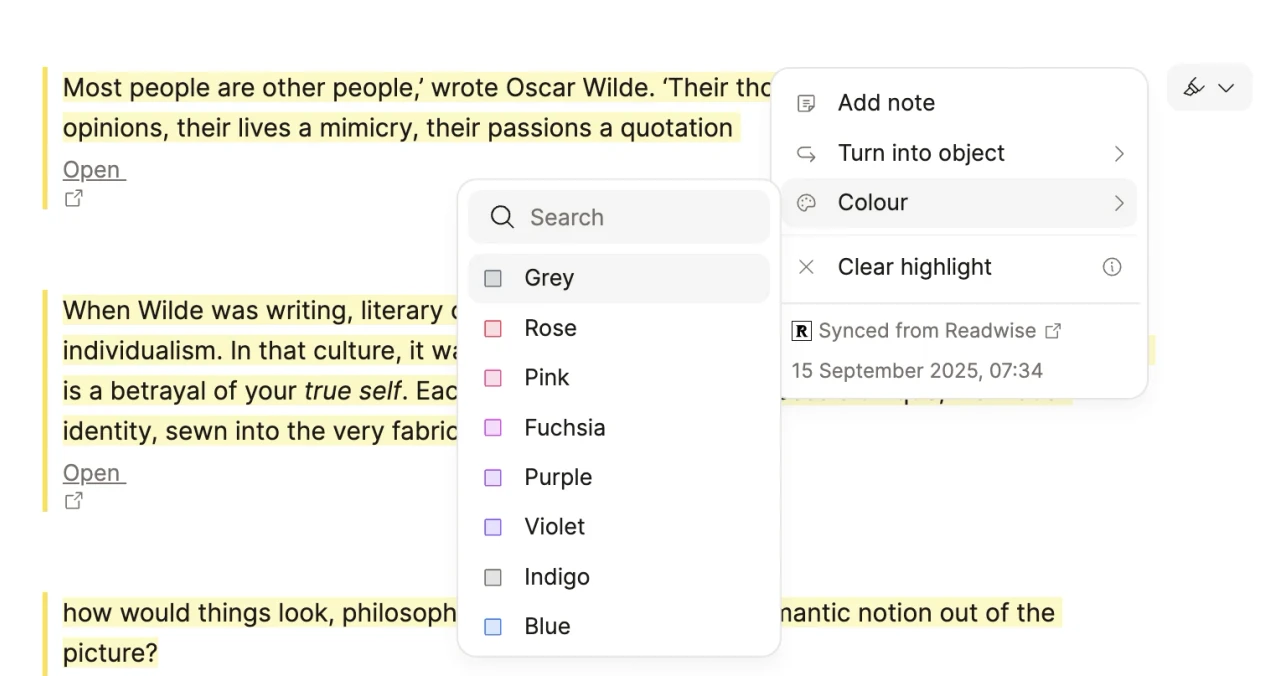
Add your sync tag in Readwise, or import it from Capacities.
It becomes an object
A book with its properties and every highlight. New highlights keep arriving.
You build on it
Add your notes, link highlights to people and ideas, and turn the best into objects.
Only what you want to work on
Capacities does not copy your whole Readwise library. You bring in a document when you are ready to work with it, which keeps your notes calm.
Tag it in Readwise or Reader
Add your sync tag to a document, not to each highlight. It comes into Capacities, and highlights you add later follow.
Or import it from Capacities
Search for “Import from Readwise” in the command palette, or use the New button on your Book type, and pick the title.
Or let new documents come in
Turn on auto-import and every document you add to Readwise from now on comes in by itself.
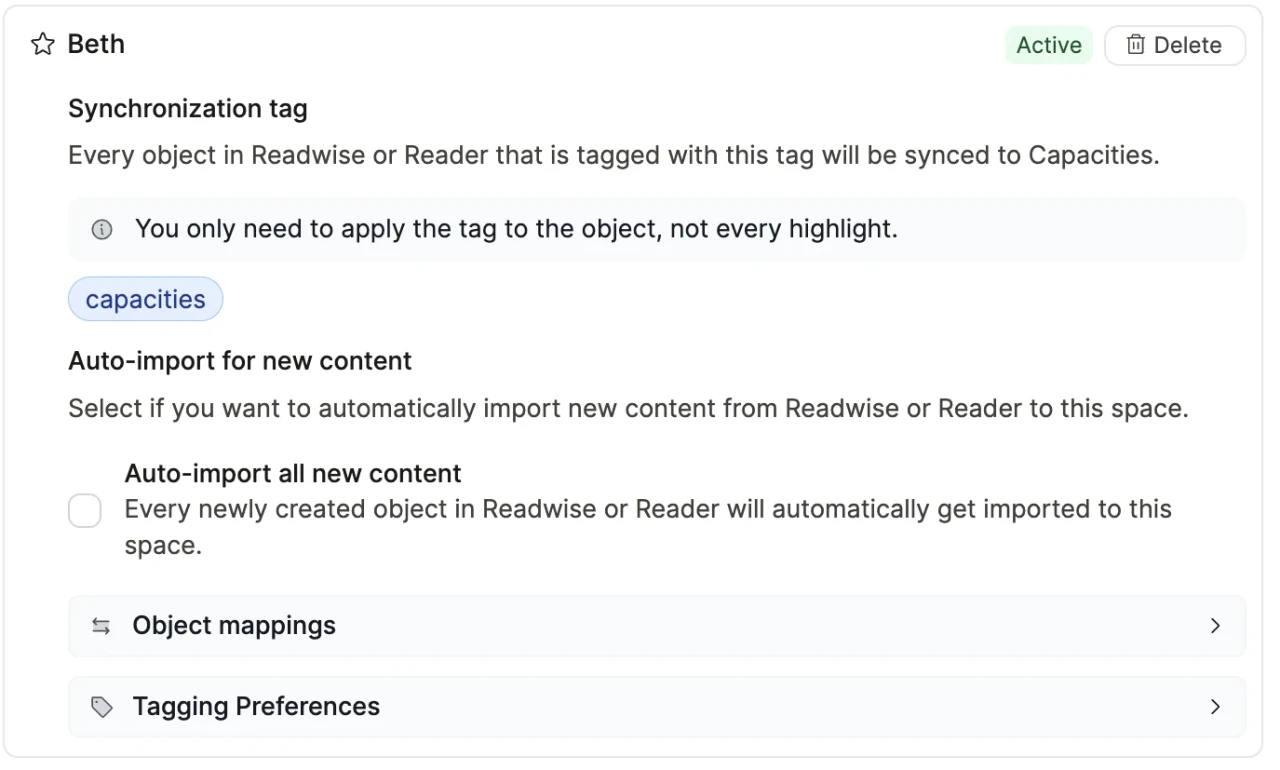
A book becomes a Book
Each document arrives as an object with properties you can sort, filter, and link, so it sits with your other books instead of in a pile of imports.
Your object types, your properties
Choose what a Readwise book becomes, for example your Book type, and map its author, summary, and document note to your own properties.
Articles, videos, and podcasts too
They come in as weblinks, or as any object type you give a URL property. PDFs and files are uploaded as they are.
Tags the way you want them
Bring Readwise tags along, match them to tags you already have, or leave them out.
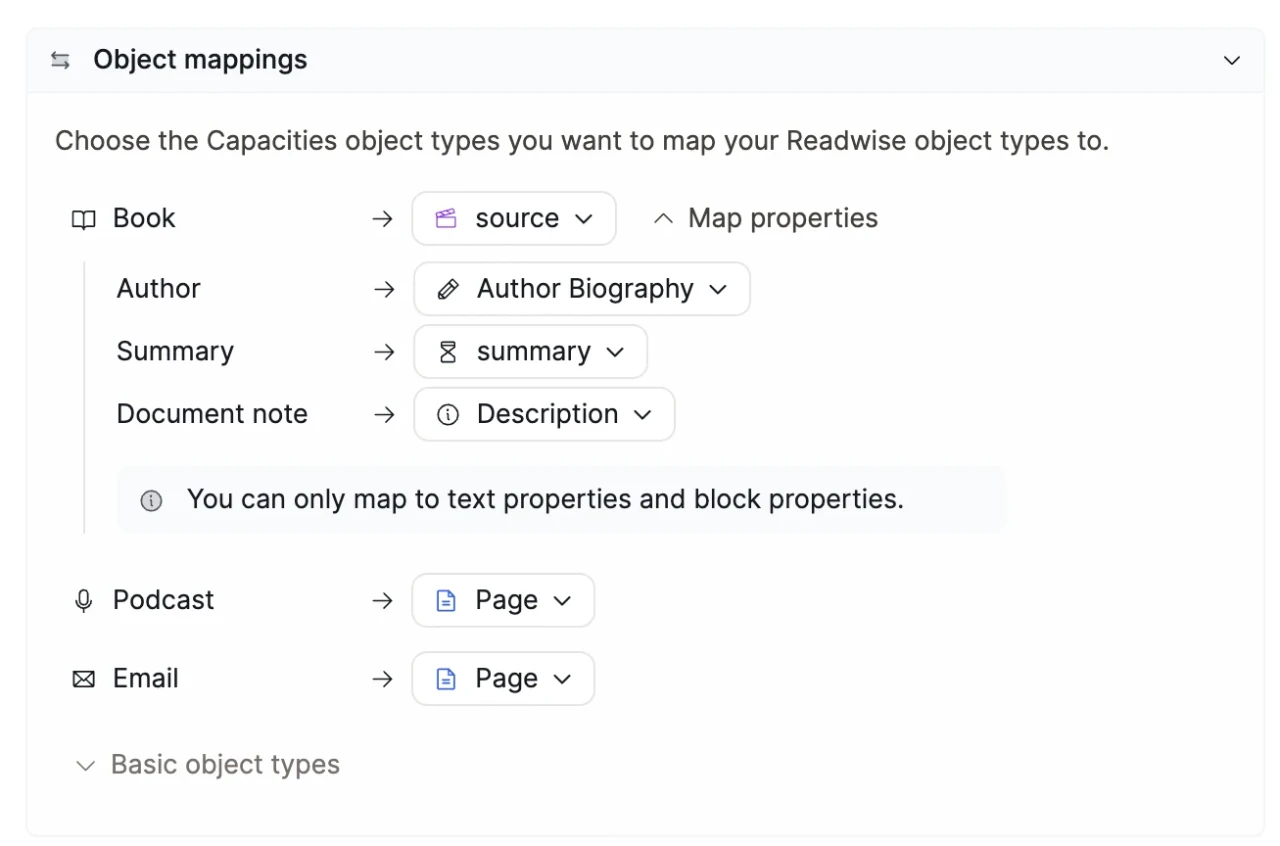
Highlights you can work with
Highlights in Capacities are blocks like any other. Move them, write next to them, and link them, so a passage you liked becomes part of what you know.
Tidy up first
Drag highlights into an order that makes sense, fix a cut-off sentence, change the color, or delete what you don’t need. Readwise keeps the original.
Say what you think
Add a note under a highlight, tag it, or @-mention a person or a project, so it turns up there too.
Turn a highlight into an object
A concept, a quote, a person. It gets its own page, and you can link it from anywhere in your notes.
Want a routine for it? The reading workflow walks through one, and why we built it this way explains the thinking.
Before you start
One way, from Readwise
Changes you make in Capacities stay in Capacities. Edits to a highlight in Readwise after it was imported are not synced again.
You choose, by design
There is no button to bring in your whole library. Importing is a deliberate step, so your notes don’t fill up with things you never come back to.
Two subscriptions
The integration is part of Capacities Pro, and Readwise needs its own subscription. If you only read on Kindle, the Kindle import needs neither.
More integrations
Other ways to get things into Capacities, and out of it.
Kindle ProEmail your Kindle highlights in, sorted by chapter.Calendar ProYour events next to the daily note, and meeting notes that follow them.

 Task actions ProSend a to-do to Todoist, Things, TickTick, and other task apps.
Bring in one book
Tag one document you are reading. Open it in Capacities a few minutes later and link the first highlight to something you already know.